Alerts
Trakkwise can tell your team when a policy blocks or warns someone, when a device stops reporting, or when AI spend runs ahead of a budget. Alerts go to a Slack channel or to email addresses, as a short digest that lists what happened since the last one. Admins set them up in Settings → Alerts.
What you can be alerted about
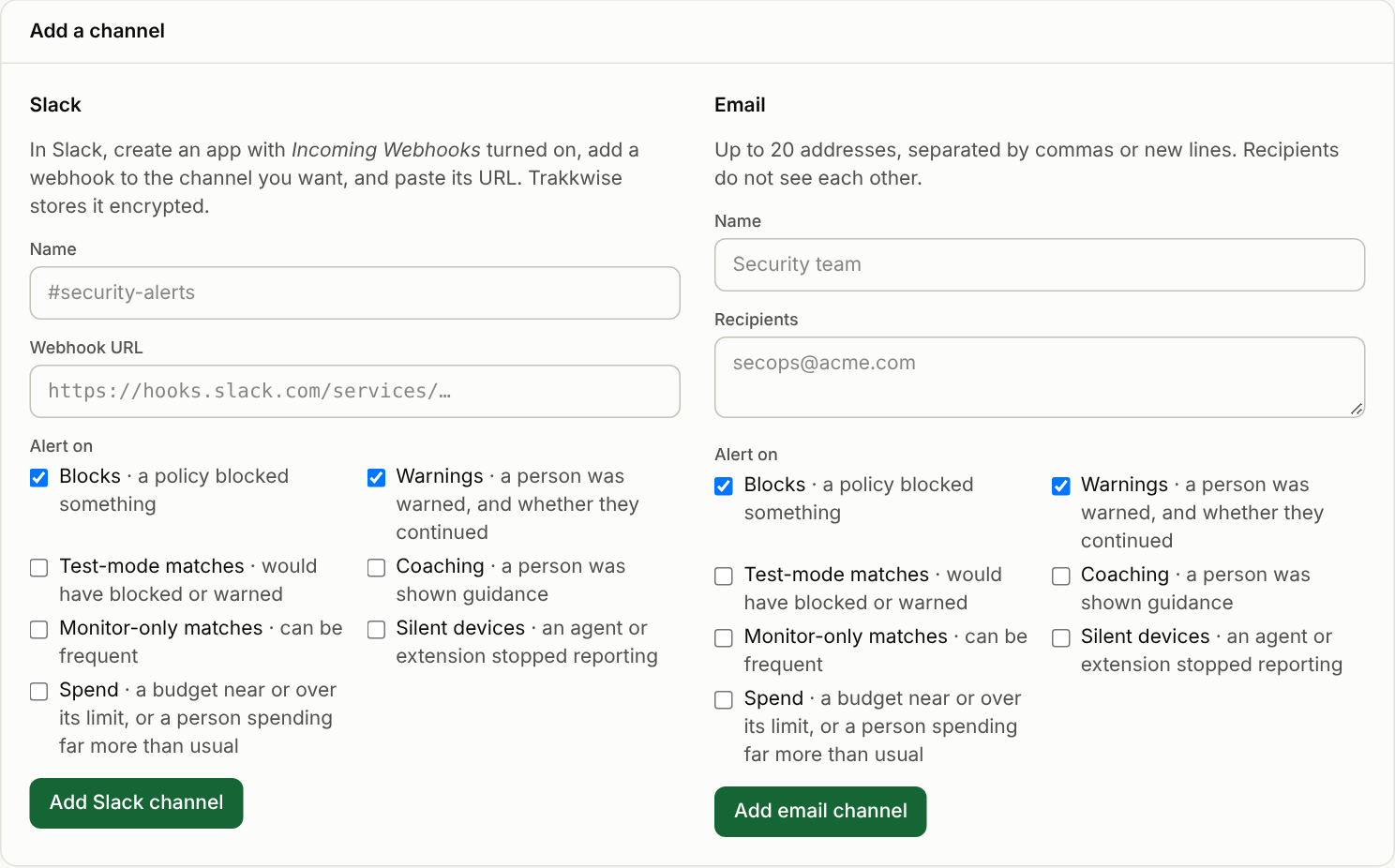
Each channel chooses its own triggers. New channels start with Blocks and Warnings ticked.
| Trigger | When it fires |
|---|---|
| Blocks | A policy blocked something |
| Warnings | A person was warned, and whether they continued |
| Test-mode matches | A rule in test mode would have blocked or warned |
| Coaching | A person was shown guidance |
| Monitor-only matches | A monitor-only rule matched. These can be frequent |
| Silent devices | An agent or extension stopped reporting |
| Spend | A budget is near or over its limit, or a person spent far more than usual |
Rules, actions and test mode are explained in the policy reference. Budgets are set in Settings → Budgets (see Spend).
Screenshot The Add a channel card, with the Slack and Email forms and the triggers each channel can alert on
Add a Slack channel
- In Slack, create an app with Incoming Webhooks turned on, and add a webhook to the channel you
want alerts in. Copy its URL (
https://hooks.slack.com/services/…). - In Trakkwise, open Settings → Alerts. Under Add a channel → Slack, give it a Name (for
example
#security-alerts) and paste the Webhook URL. - Tick what it should alert on, then Add Slack channel.
Trakkwise stores the webhook URL encrypted and never shows it again. The channel list shows only its last characters.
Add an email channel
- Under Add a channel → Email, give it a Name (for example
Security team). - In Recipients, enter up to 20 addresses, separated by commas or new lines. Recipients don't see each other.
- Tick what it should alert on, then Add email channel.
If the page says Email alerts are written to the API log, not sent, your Trakkwise server has no email sender set up yet. Slack channels still work. Whoever runs your Trakkwise deployment sets the sender.
How digests are sent
- Each channel gets at most one digest every 5 minutes. It lists everything since that channel's last digest: for example "3 blocked, 2 warnings, 1 silent device", with up to a few examples of each and links to Violations, Devices or Budgets in the console.
- A digest never reaches back more than 24 hours. If a channel was broken for longer, it starts again from the last day rather than flooding the channel when it's fixed.
- Names that devices reported (people, computers, tools) are shown as plain text. If names are hidden from viewers and analysts (Privacy settings), alert messages show pseudonyms too.
Screenshot The Channels list, where each channel's triggers, status and last digest are shown

Test a channel
In Channels, select Send test next to a channel. A test message goes out at once, and appears under Recent deliveries as Test. You can send one test per channel every 30 seconds.
Change, pause or delete a channel
- Change under a channel's triggers lets you tick different ones; select Save.
- Pause stops a channel without deleting it. Resume starts it again from that moment: what happened while it was paused isn't sent.
- Delete removes it. Its past deliveries stay in Recent deliveries, as Deleted channel.
Silent devices
In the Silent devices card, set how many hours a device can go without contact before it's reported (1 to 720). Laptops that are shut over a weekend go quiet too, so 72 hours is a good start. Each silent device is reported once, and again only if it comes back and then goes quiet again. Only channels with Silent devices ticked get these.
Screenshot The Silent devices card, where you choose how many hours without contact count as silent

When a channel fails
A channel's status is Active, Failing or Paused.
- When Slack or the mail server refuses a digest, the channel shows Failing with the error, and Trakkwise retries later: after 1 minute, then 2, 4 and so on, up to once an hour. Nothing is lost: the next successful digest includes what was waiting (up to 24 hours back).
- A Slack webhook stops working if the app or the channel is removed in Slack. Add a new webhook and delete the old channel.
- Recent deliveries shows each digest and test from the last 30 days, with Sent or Failed and the error.
Screenshot Recent deliveries, with each digest or test and whether it was sent

Spend alerts
With Spend ticked, a channel also gets:
- Budgets near their warning level, projected to go over, or over. Budgets and their warning levels are set in Settings → Budgets.
- Unusual spend: each day, Trakkwise compares each person's spend with their own previous 28 days, and reports a day that's far above it (at least $10, more than twice their average, and well outside their usual range).
The last 30 days of spend alerts are listed in Settings → Budgets. To send each person their own numbers instead, see the personal spend summary.