AI governance
Trakkwise keeps the records an AI governance program needs, filled in from what devices actually do: the AI Inventory of every tool in use and its status, the AI Registry of approved uses with their reviews by Security, Legal and Compliance, AI Vendors with a risk score for each company, the Compliance checklists for the EU AI Act, NIST AI RMF and ISO/IEC 42001 with a monthly report, and Risk scores for people and tools. This guide covers each, and who can do what.
| Page | Viewers | Analysts | Admins |
|---|---|---|---|
| AI Inventory | Read | Set a tool's status | Set a tool's status |
| AI Registry | Read, request approval | Read, request approval | Retire entries, name reviewers |
| AI Vendors | Read | Assess vendors | Assess vendors |
| Compliance | Read | Attest controls | Attest controls |
| Risk | Read | Read | Read |
Anyone can review a registry request for the teams an admin has made them a reviewer for (see Reviewers).
The AI inventory
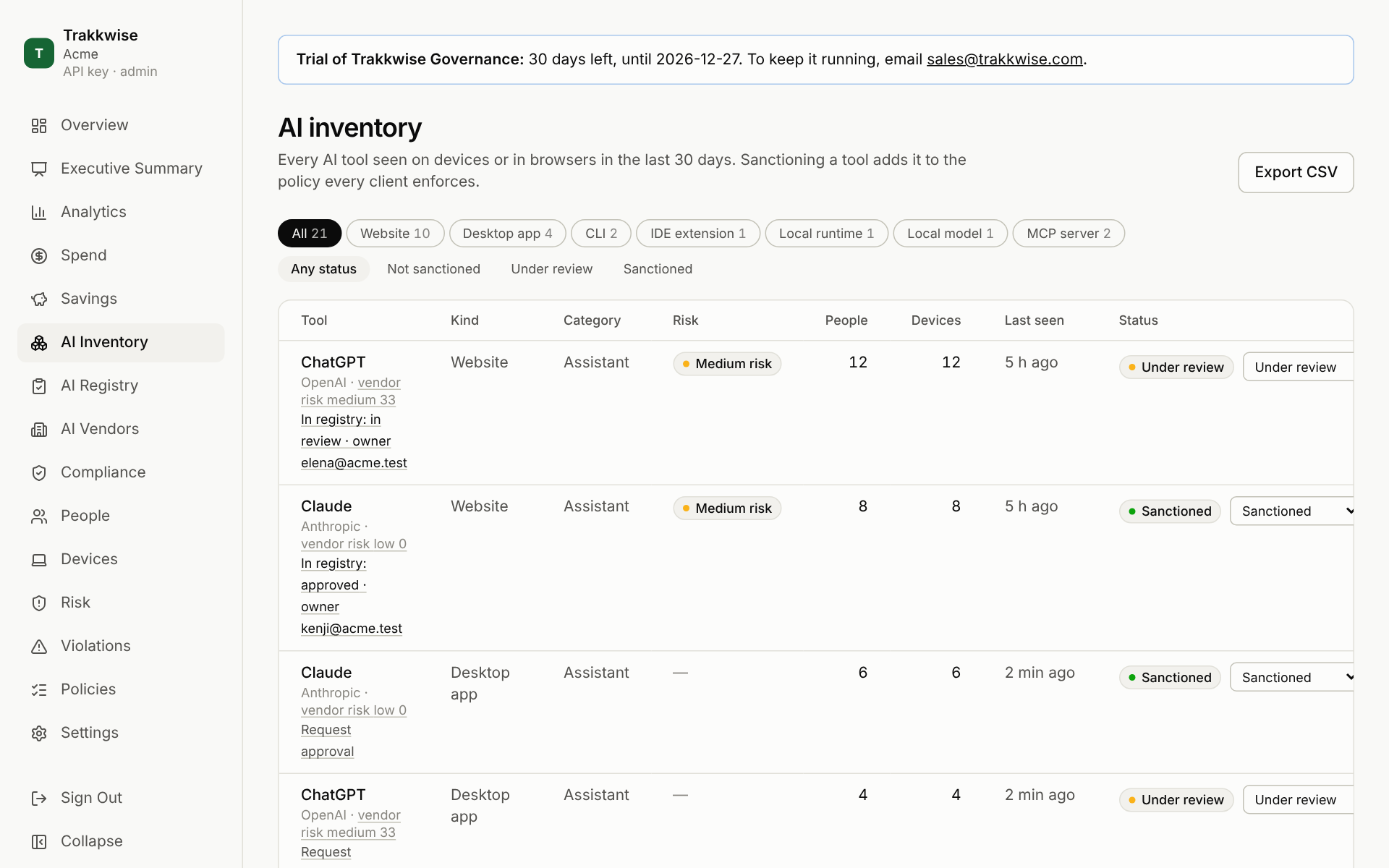
AI Inventory lists every AI tool seen on devices or in browsers in the last 30 days: its kind, category, risk, how many people and devices use it, when it was last seen, and its status. Filter by kind (website, desktop app, CLI, IDE extension, local runtime, local model, MCP server) and by status.
Each tool has one of three statuses:
| Status | Meaning |
|---|---|
| Sanctioned | Approved for use. Sanctioned tools are part of the policy every agent and extension enforces |
| Under review | Being looked at |
| Not sanctioned | Not approved. Policies can coach, warn or block on it (see the policy reference) |
To change a status (analysts and admins):
- In the tool's row, choose Sanctioned, Under review or Not sanctioned.
- Press Save.
Devices pick up the change with the next policy, within minutes. A tool approved in the AI registry is sanctioned automatically.
Screenshot The AI inventory
The AI registry
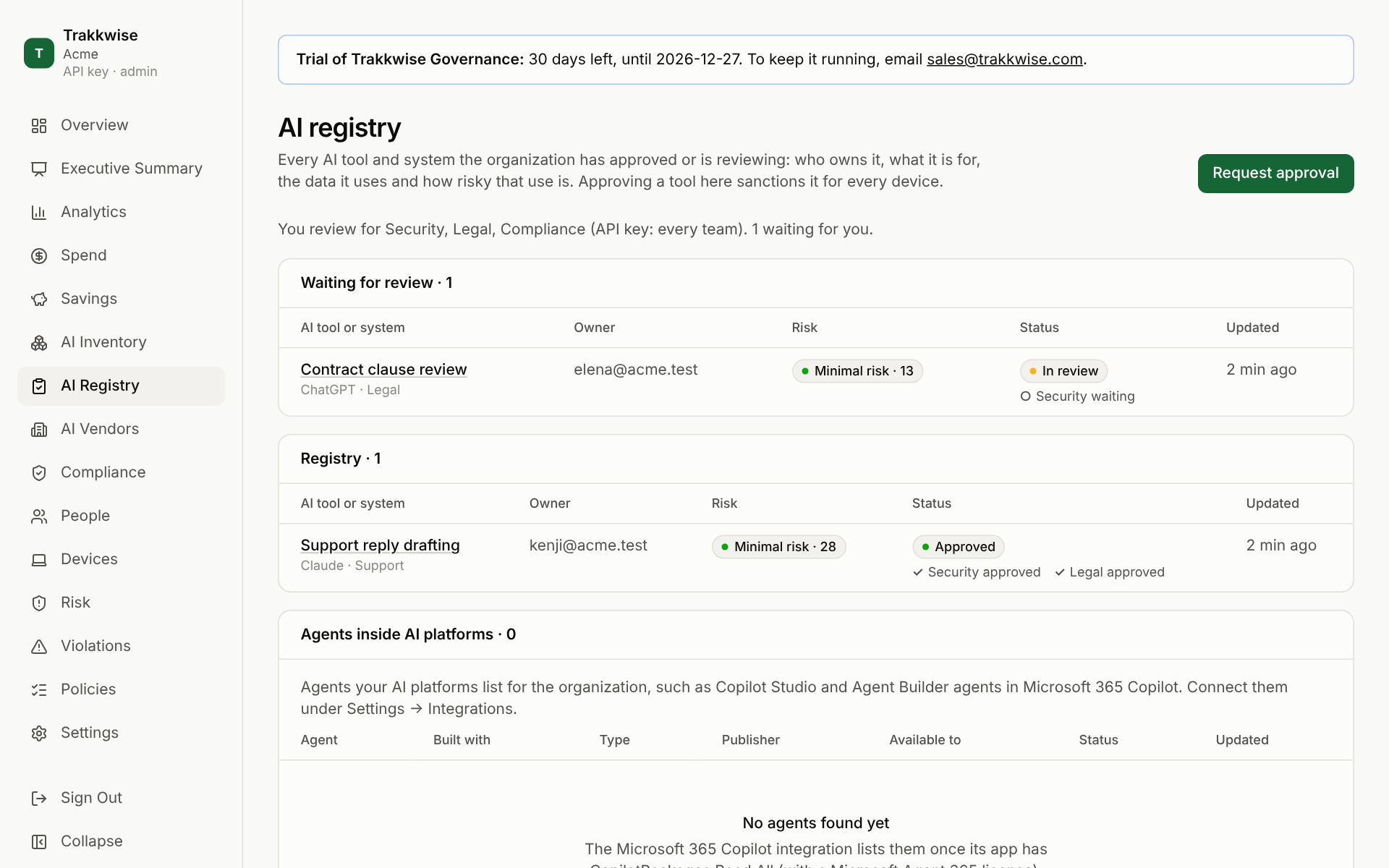
AI Registry records each AI tool or system the organization has approved or is reviewing: who owns it, what it is for, the data it uses and how risky that use is. It has three lists:
- Waiting for review: requests still being decided;
- Registry: approved, rejected and retired entries;
- Agents inside AI platforms: agents built in platforms such as Microsoft 365 Copilot, once that integration can list them.
Screenshot The AI registry
Requesting approval
Anyone with console access can ask.
- Press Request approval (or start from a tool in the AI inventory).
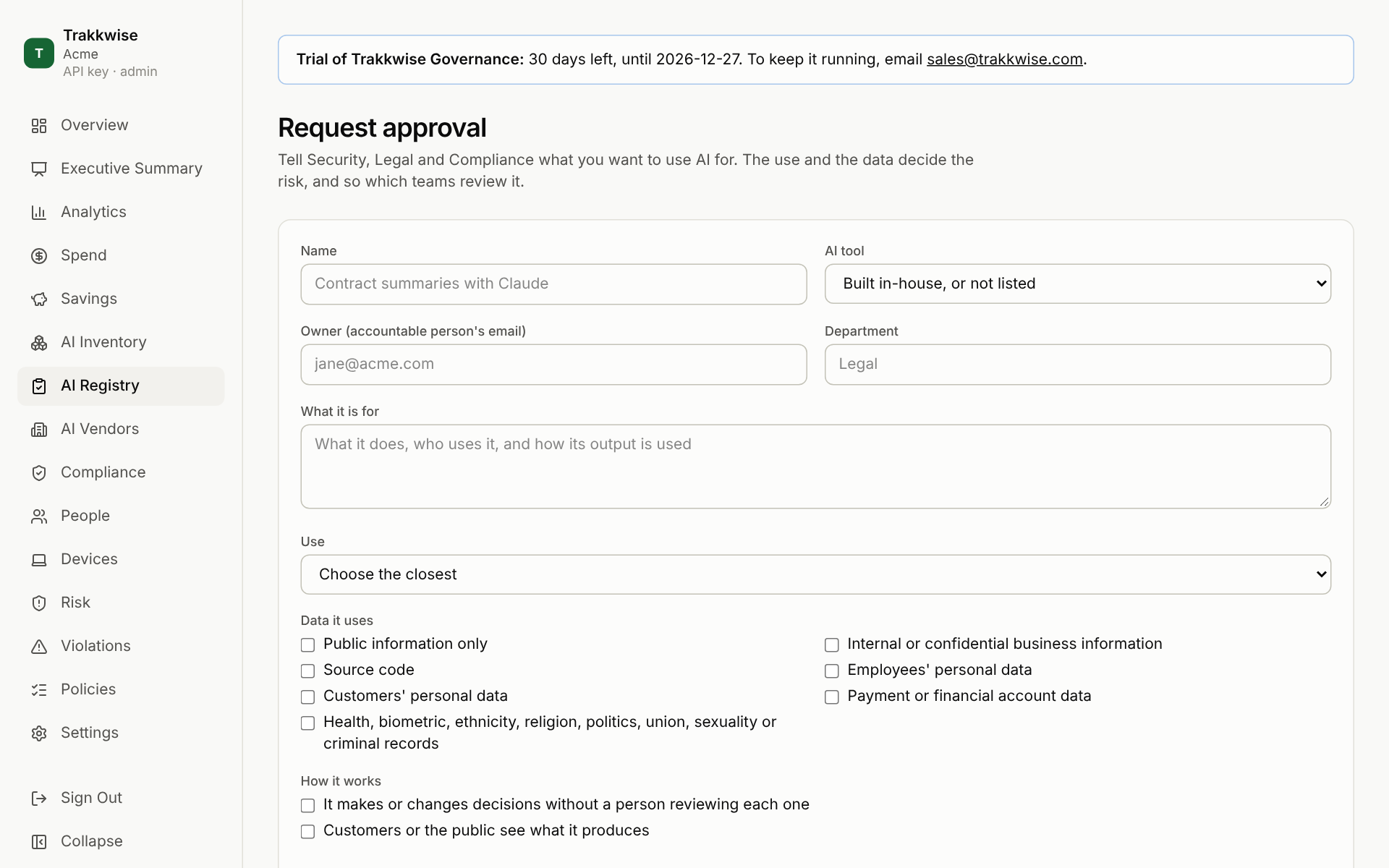
- Fill in:
- Name, and the AI tool (or Built in-house, or not listed);
- Owner (the accountable person's email) and Department;
- What it is for, and the closest Use from the list;
- Data it uses: public information, internal information, source code, employees' or customers' personal data, payment data, or special-category data (health, biometrics and the like);
- How it works: whether it makes or changes decisions without a person reviewing each one, and whether customers or the public see what it produces;
- optionally the models used, the legal basis for personal data (GDPR Article 6), whose data, human oversight, how long output is kept, and an impact assessment with a link.
- Press Send for review.
Screenshot Request approval
How the risk is worked out
The Use sets the risk tier, following the EU AI Act:
| Tier | Uses | Base score |
|---|---|---|
| Minimal risk | Everyday work: writing, code, summaries, research, translation, internal analysis, an internal assistant | 10 |
| Limited risk | Facing customers or the public (chatbots, published content, personalized marketing), and anything not listed | 35 |
| High risk | Decisions about people (hiring, staff, credit and insurance, essential services, education, biometric identification) and safety and legal uses (critical infrastructure, legal decisions, medical) | 70 |
| Prohibited | Social scoring, recognizing employees' or students' emotions, inferring sensitive traits from biometrics, manipulation | 100 |
The data adds points: internal information 3, source code 5, employees' personal data 8, customers' personal data 10, payment data 10, special-category data 15. Acting without a person reviewing each decision adds 10, and output the public sees adds 5. Scores stop at 95 for minimal and limited uses and 99 for high-risk ones. The entry's Risk card lists every reason.
A prohibited use can't be requested: the registry refuses it ("This use is prohibited under the EU AI Act (Article 5) and cannot be approved."). This is a triage aid, not legal advice.
Reviews
The tier decides which teams review:
- Security always;
- Legal for anything beyond minimal risk, or any personal data;
- Compliance for high-risk uses, or special-category data.
To decide, open the entry. Under Reviews, for each team you review for:
- Choose Approve, Ask for changes or Reject.
- Add a Comment (needed to ask for changes or reject).
- Press Record decision.
You can't review your own request. When every team approves, the entry is Approved, and a catalog tool is sanctioned for every device. One rejection makes it Rejected; one request for changes makes it Changes requested.
Screenshot A request waiting for review, with each team's decision

Whoever requested an entry, or an admin, can edit it. Editing an entry that isn't approved, or changing an approved entry's risk, sends it back for review. A rejected or retired entry can't be edited: request it again.
The entry also shows Data and controls (what was declared against what Trakkwise saw going to the tool, such as personal data or secrets, flagged "not declared"), Needs attention, the tool's Vendor, and what Trakkwise saw in the last 30 days.
Reviewers
Admins choose who reviews for which team in Settings → Members: tick security, legal or compliance next to each person. See Members and roles.
Retiring an entry and system cards
- Retire (admins) ends an entry that's no longer in use.
- System card on an entry opens a printable summary (purpose, risk, ingredients) for auditors and customers: press Print or save as PDF there. The entry's Needs attention card lists what's missing from it.
AI vendors
AI Vendors shows how risky each AI company is to send your data to: whether it trains on what people send, how long it keeps it, its certifications, contracts and where it's based. Vendors whose tools were used in the last 30 days come first, with tools that have no vendor profile listed separately.
Risk is 0 to 100, higher is riskier, for the plan you use:
| Fact | Points |
|---|---|
| Based where the law can require handing over data (for example China) | 25 |
| Trains on what people send | 25 (15 if people can opt out, or it's not known) |
| Personal plans: no contract or data processing agreement | 10 |
| Personal plans: no admin controls | 8 |
| Business plans: keeps prompts up to 30 days / unknown | 3 / 8 (0 with zero retention) |
| Business plans: no data processing agreement, or not known | 10 |
| Business plans: no known admin controls | 5 |
| No SOC 2 report (or none known) | 12 |
| No ISO 27001 certification (or none known) | 5 |
Low is under 25, Medium 25 or more, High 50 or more, Very high 75 or more. Not knowing a fact counts against the vendor.
Screenshot AI vendors
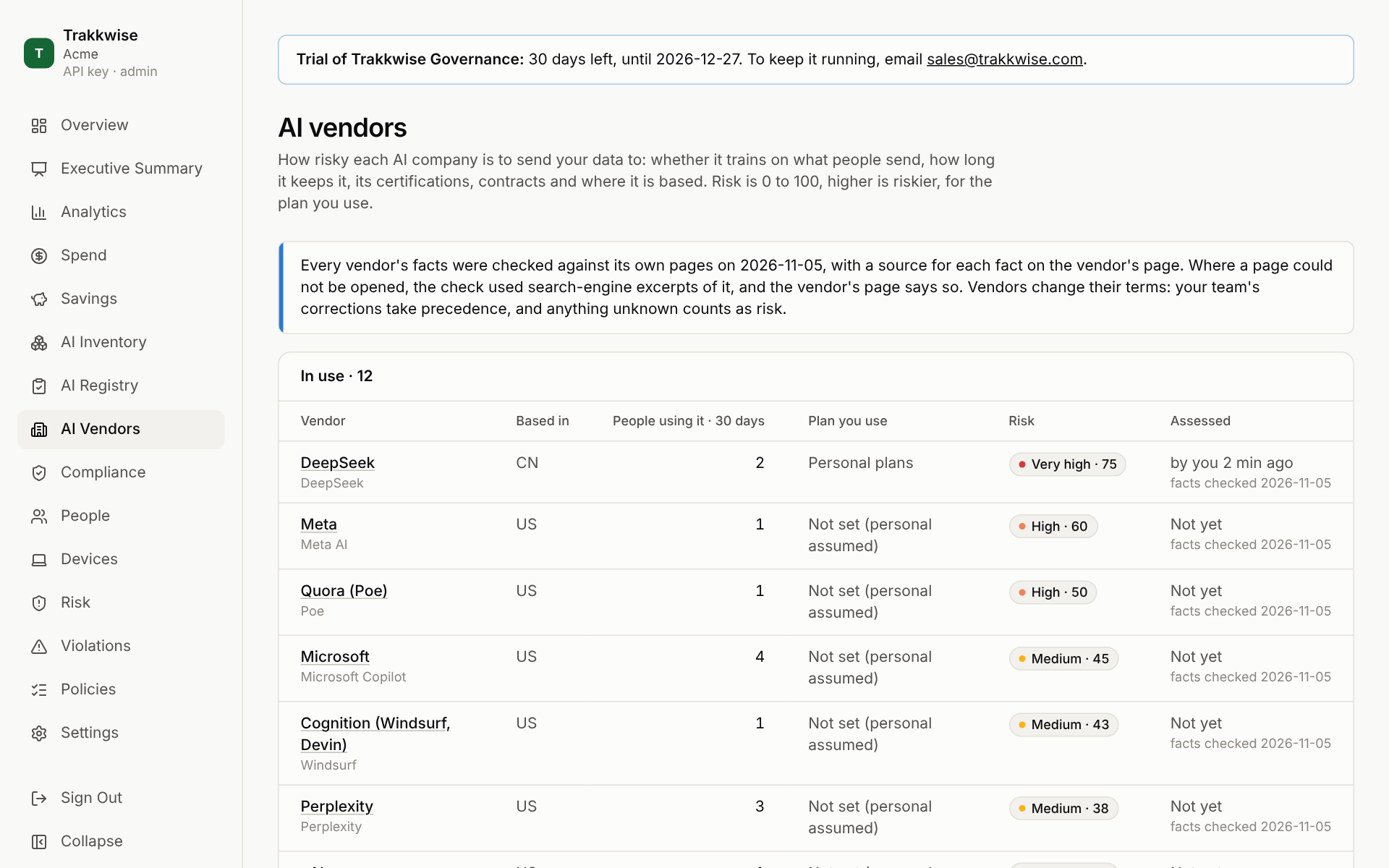
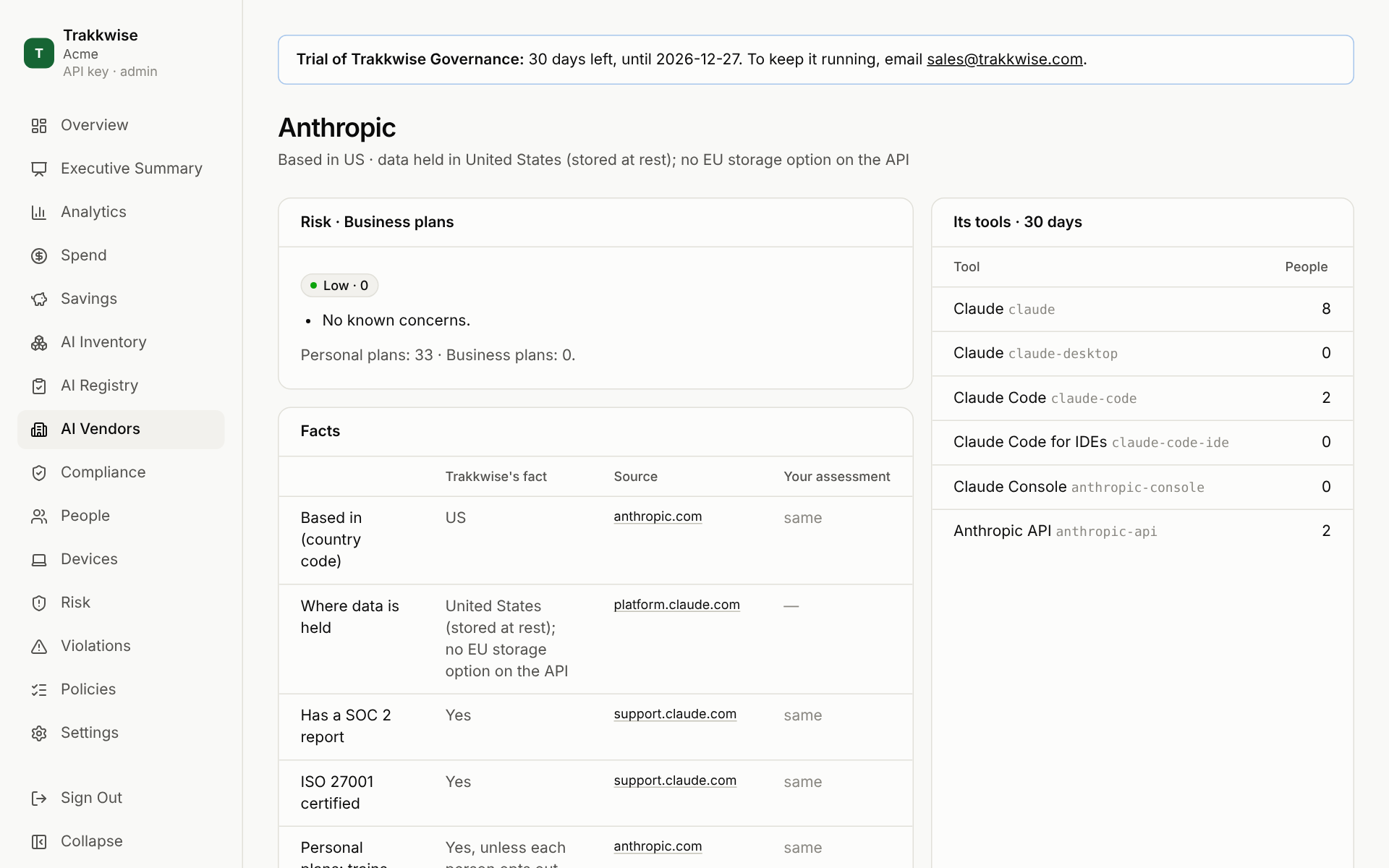
Trakkwise ships each vendor's facts with a source link for each. To correct them for your organization (analysts and admins), open the vendor and, under Your assessment:
- Choose the Plan your organization uses: personal plans (people sign up themselves) or a business plan (a contract with the vendor). Until you choose, personal is assumed.
- Change any fact that's different for you, or leave Trakkwise's fact.
- Add Notes (contract, review, exceptions).
- Press Save assessment.
Screenshot A vendor's facts and your assessment
Compliance
Compliance checks your AI governance against three frameworks, with evidence from what Trakkwise sees:
- EU AI Act (Regulation (EU) 2024/1689), the duties of organizations that use AI;
- NIST AI RMF 1.0;
- ISO/IEC 42001:2023 (Annex A).
Each control shows its status and the evidence checks behind it, each marked passes, partly, fails or not applicable:
| Status | When |
|---|---|
| Met | Every check passes, and the control is fully about something Trakkwise can see |
| Partly met | A check partly passes |
| Not met | A check fails |
| Needs your attestation | The control is about people or paperwork (training, informing workers, notices), so it needs you to confirm it |
| Not applicable | None of its checks apply |
Screenshot Compliance checklists
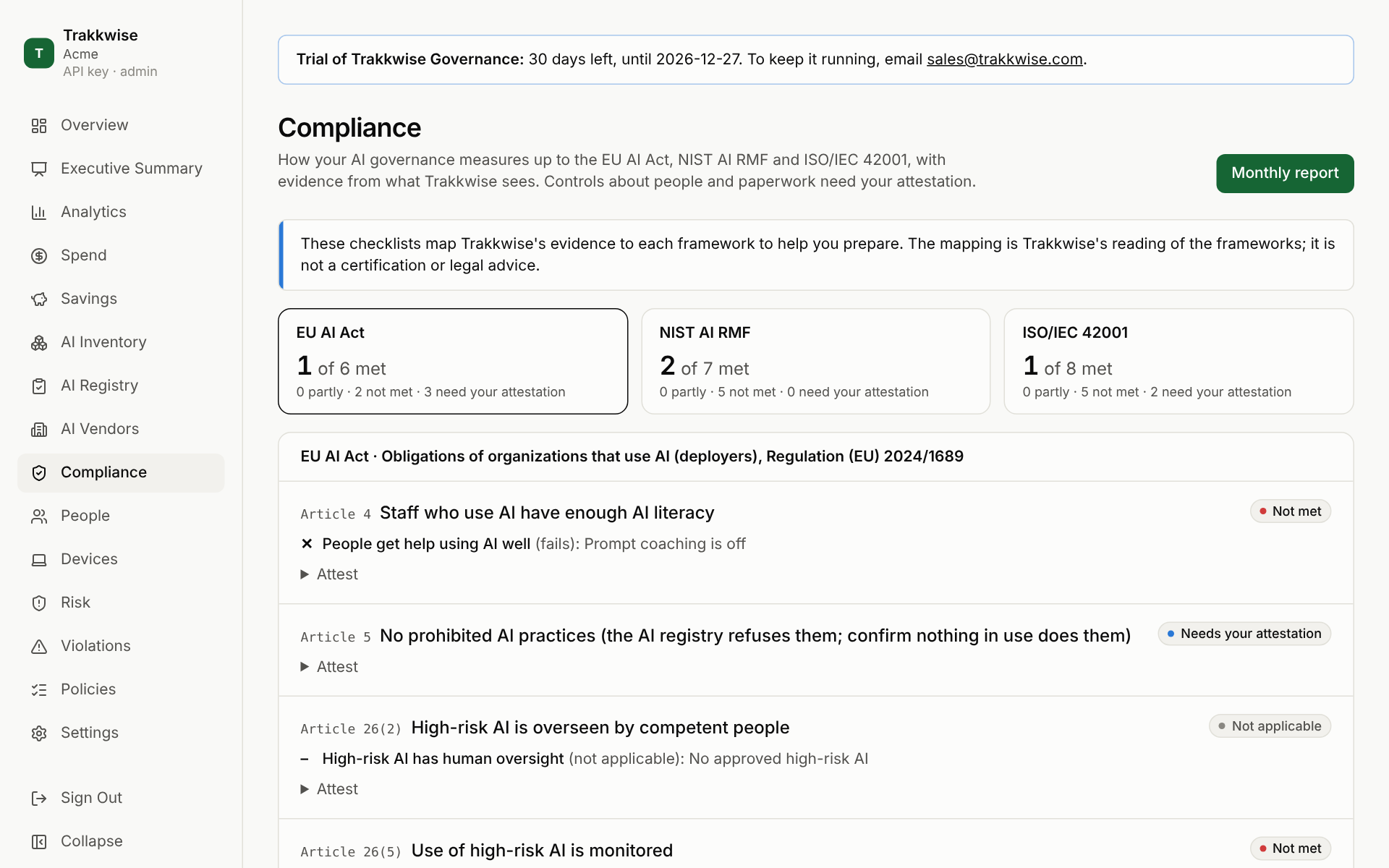
To attest a control (analysts and admins):
- Open Attest (or Change attestation) under the control.
- Choose the Status: Met, Partly met, Not met or Not applicable. Use Trakkwise's evidence goes back to the automatic status.
- Add Evidence (note or link), such as your training record or the notice you sent.
- Press Save.
The control then shows who attested it, when, and the note. The mapping is Trakkwise's reading, to help you prepare: not a certification or legal advice.
The monthly report
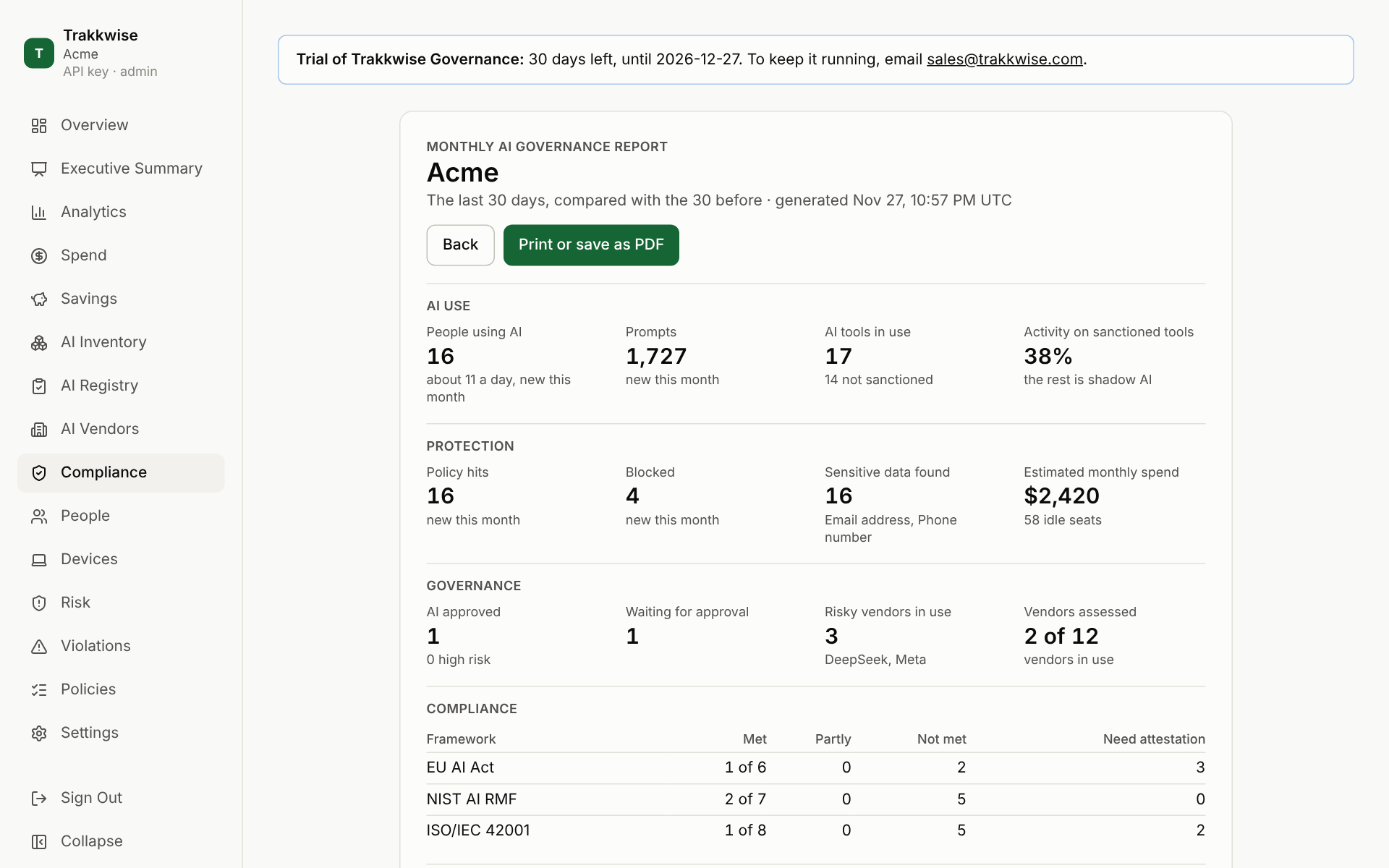
Monthly report is one page for leadership on the last 30 days: AI use, protection (blocks, sensitive data, spend), governance, compliance and what needs attention. Press Print or save as PDF to send it on.
Screenshot The monthly report
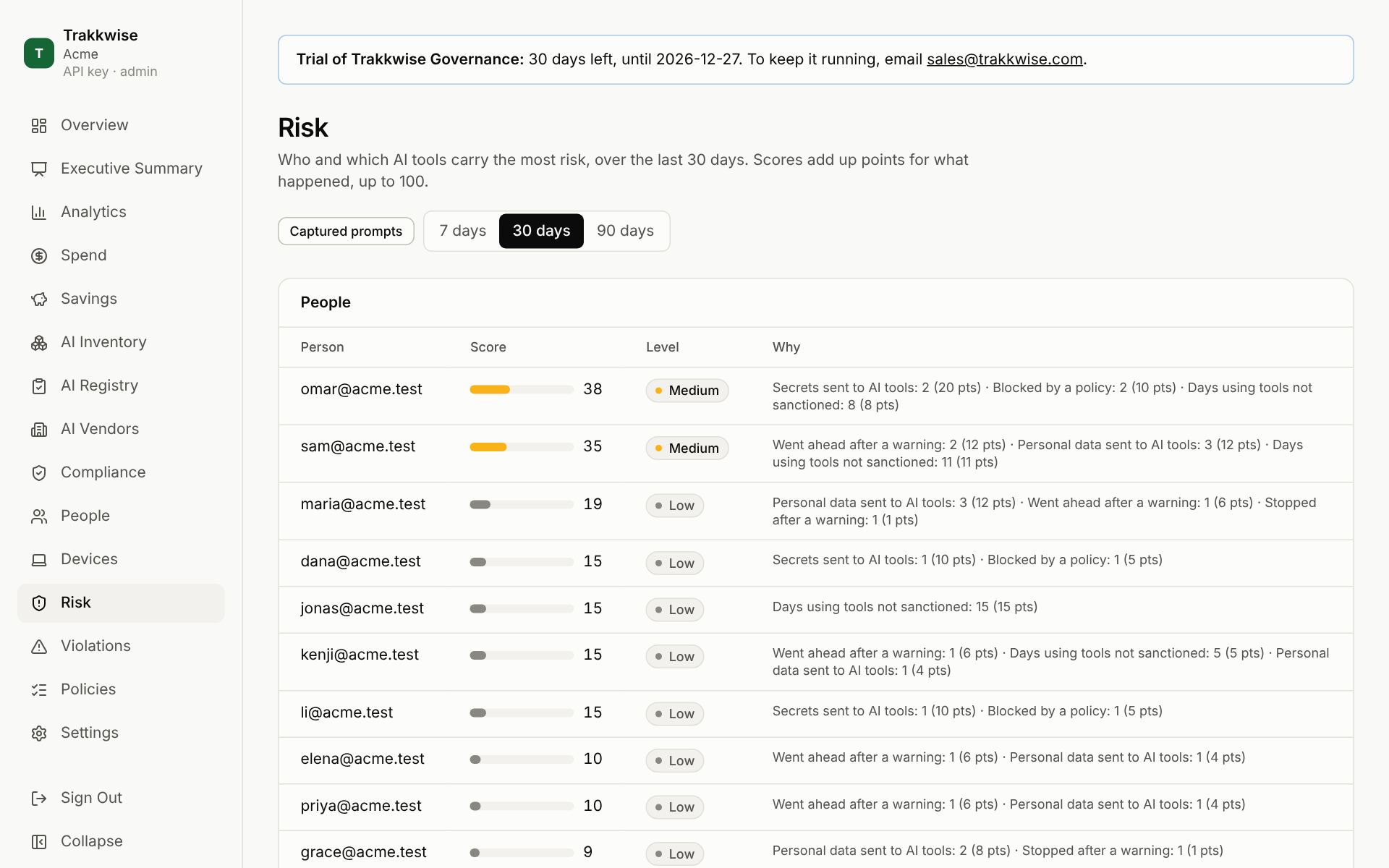
Risk scores
Risk ranks people and tools by risk over the last 7, 30 or 90 days. Each score adds up points for what happened, up to 100:
| What happened | Points, each time |
|---|---|
| A secret (keys, tokens, passwords, key files) | 10 |
| Going ahead after a warning | 6 |
| A block | 5 |
| Personal data (email, phone, ID, card, IBAN) | 4 |
| Source code | 2 |
| Cancelling after a warning | 1 |
| A day using a tool marked not sanctioned | 1 |
With prompt capture on, what the classifier finds in kept prompts adds to these: trying to get around policy 8; confidential business information, records about many people or health information 6; unreleased financials, HR or legal matters 4, each prompt. See Privacy settings.
High is 50 or more, Medium 20 or more, else Low. Each row lists why. Only what was detected counts, never what anyone typed. See Violations for each event, and Reading the dashboards.
Screenshot Risk