Privacy settings for admins
How to use Trakkwise's privacy controls: how long activity is kept, hiding names from viewers and analysts, answering a person's request to see or delete their data, prompt capture, and deleting your organization. These are in Settings → Privacy and Settings → General, for admins. For what Trakkwise collects and why, and the legal terms, see the privacy pack.
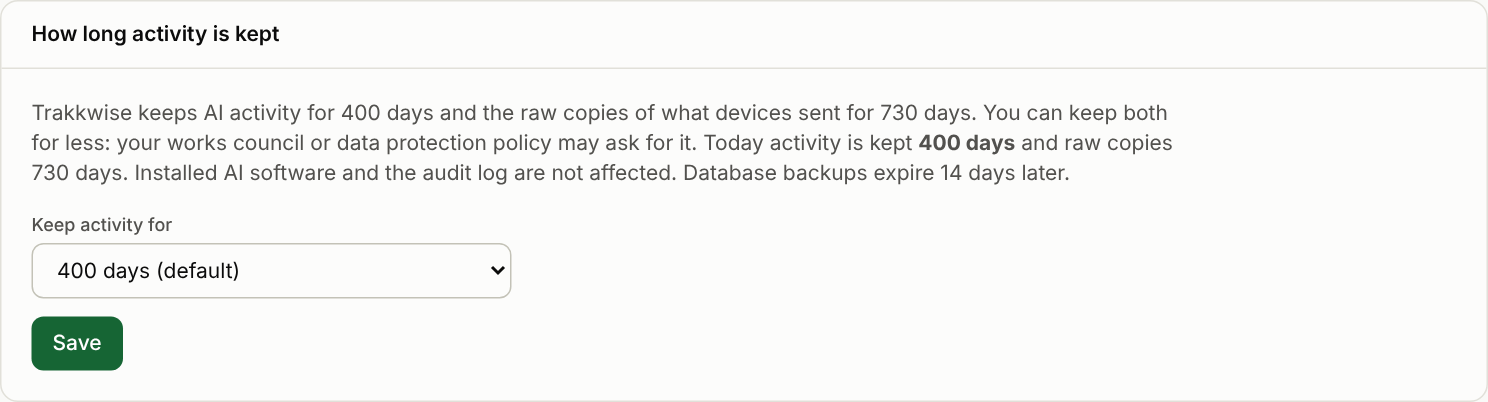
How long activity is kept
By default Trakkwise keeps AI activity, and the raw copies of what devices sent, for the platform's period (shown on the page). You can keep both for less, for example because your works council or data protection policy asks for it.
- Open Settings → Privacy, and find How long activity is kept.
- In Keep activity for, choose 30, 60, 90, 180 or 365 days, or the default.
- If that's shorter than now, tick the box that confirms older activity is deleted for good, then Save.
Activity older than the period is deleted in that night's maintenance run, with its raw copies. It can't be brought back. Installed AI software and the audit log aren't affected. Database backups expire 14 days later.
Screenshot How long activity is kept, with the Keep activity for choice
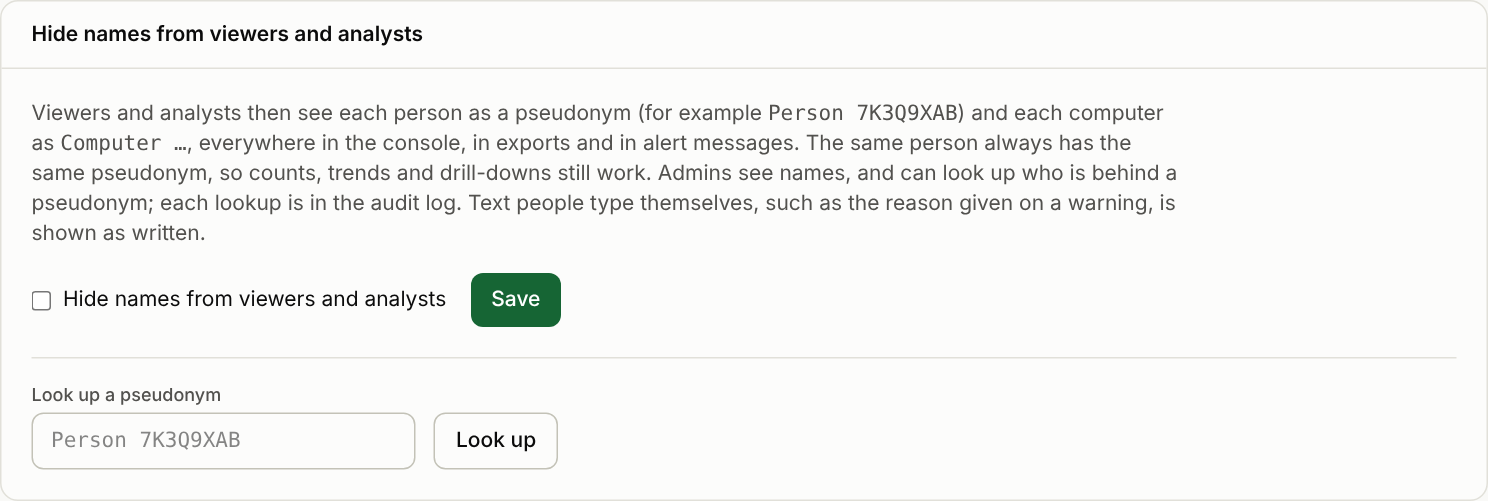
Hide names from viewers and analysts
With this on, viewers and analysts see each person as a pseudonym (for example Person 7K3Q9XAB) and
each computer as Computer …: everywhere in the console, in exports and in alert messages. The same
person always has the same pseudonym, so counts, trends and drill-downs still work. Admins still see
names. Text people type themselves, such as the reason given on a warning, is shown as written.
- In Hide names from viewers and analysts, tick the box and select Save.
- To find out who is behind a pseudonym, enter it in Look up a pseudonym and select Look up. Each lookup is recorded in the audit log.
Roles are explained in Members and roles.
Screenshot Hide names from viewers and analysts, with the pseudonym lookup
A person asks for their data, or for it to be deleted
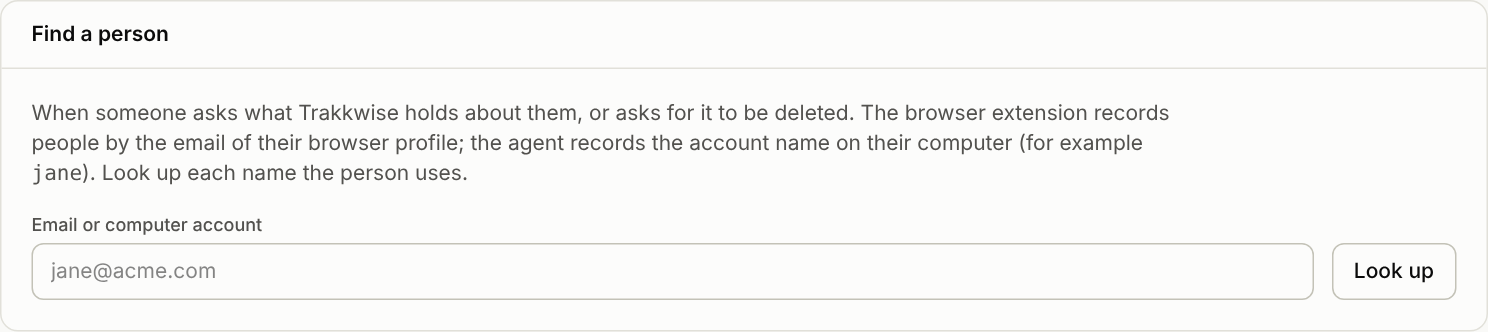
The browser extension records people by the email of their browser profile; the agent records the
account name on their computer (for example jane). Look up each name the person uses.
- In Find a person, enter their email or computer account name and select Look up. Names match regardless of case.
- Data held about … shows their events, the AI software found, their devices, and when their activity started and last happened.
- To give them a copy, select Download data. It's a JSON file with their events, the AI software found on their computer account and the devices involved. The export is recorded in the audit log.
- To delete their data, type their name to confirm and select Delete this person's data.
Deleting removes their events and the AI software recorded under their name, and removes their name from devices. Raw copies of what was received are cleaned in the nightly maintenance run (at once on a local server). Database backups expire within 14 days. It can't be undone. If they still use a managed device or browser, new activity is recorded from then on.
Every deletion is listed under Deletion requests, with who asked and the counts. Once a deletion is complete, the person's name isn't kept; only a short hash of it is.
Screenshot Find a person, to look up, download or delete one person's data
Prompt capture
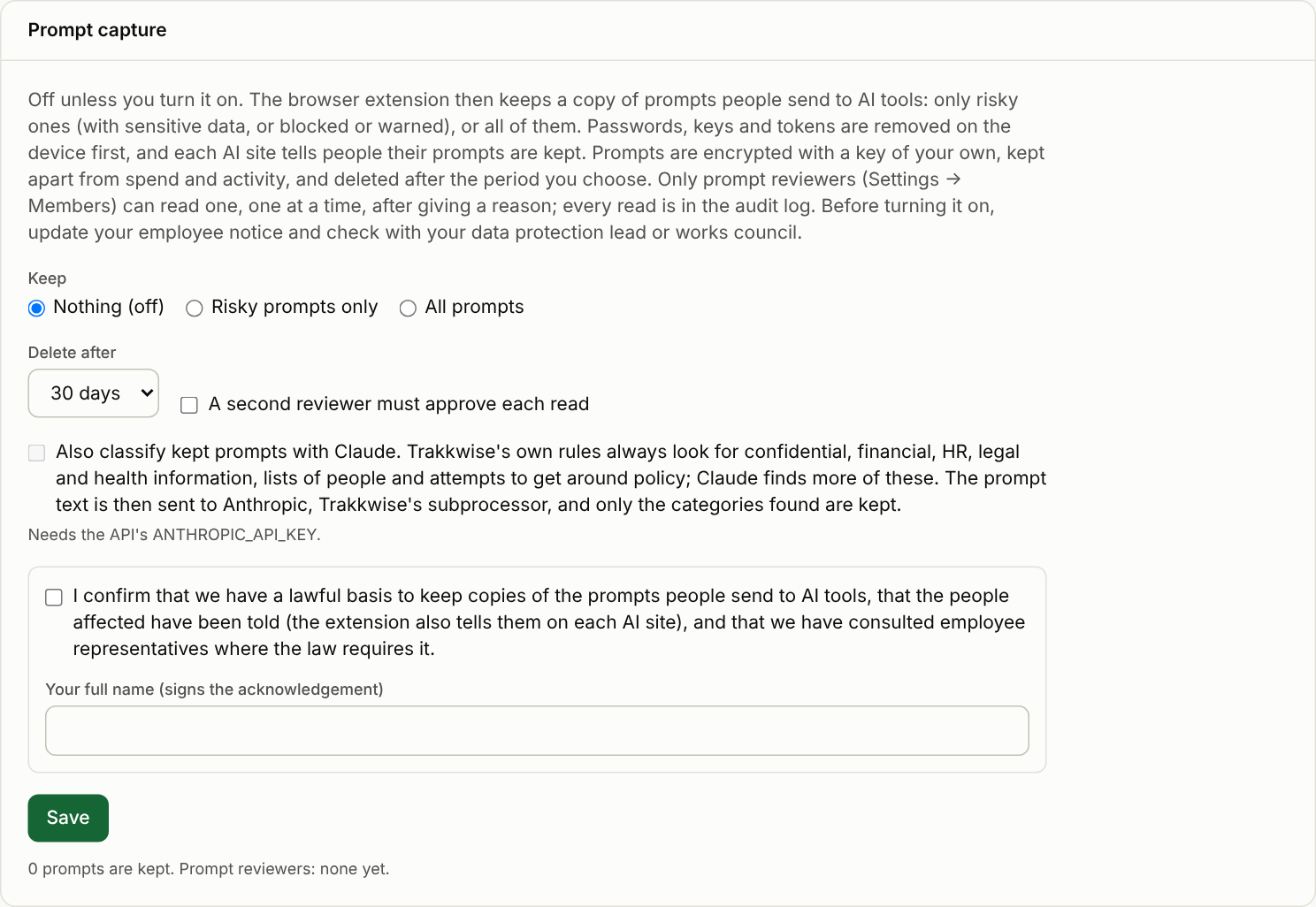
Prompt capture is off unless you turn it on. With it on, the browser extension keeps a copy of the prompts people send to AI tools: only risky ones (with sensitive data, or blocked or warned), or all of them. Passwords, keys and tokens are removed on the device first, and each AI site tells people that their prompts are kept.
Prompts are encrypted with a key of your organization's own, kept apart from spend and activity, and deleted after the period you choose. Only prompt reviewers can read one, one at a time, after giving a reason; every read is in the audit log.
Before turning it on, update your employee notice and check with your data protection lead or works council. The privacy FAQ answers their usual questions.
Turn it on
- Open Settings → Privacy, and find Prompt capture.
- Under Keep, choose Risky prompts only or All prompts.
- In Delete after, choose 7, 14, 30, 60 or 90 days.
- Tick A second reviewer must approve each read if you want two people involved in every read.
- Optionally tick Also classify kept prompts with Claude (see below).
- Read the acknowledgement, tick it, type Your full name to sign it, and select Save.
The acknowledgement confirms that you have a lawful basis to keep copies of prompts, that the people affected have been told, and that you've consulted employee representatives where the law requires it. The page then shows who signed it and when.
If the page says The API needs PROMPT_CAPTURE_KEY set, ask whoever runs your Trakkwise deployment.
Screenshot Prompt capture, as it appears before it's turned on
Choose prompt reviewers
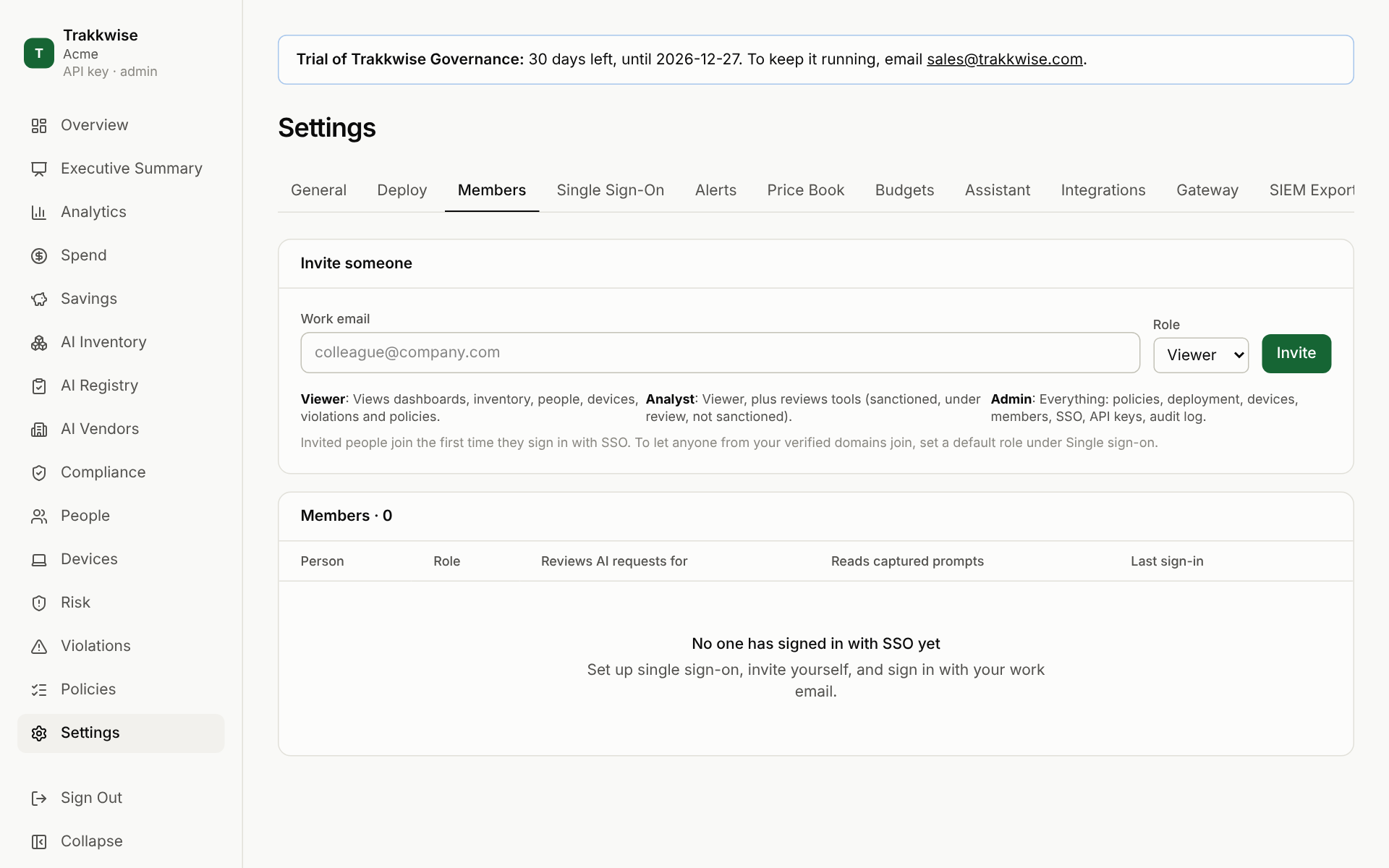
Only prompt reviewers can read captured prompts, and only signed in as themselves with single sign-on: never with an API key.
- Open Settings → Members.
- In the Reads captured prompts column, tick Prompt reviewer for each person, and select Save on their row.
The Prompt capture card lists the current reviewers.
Screenshot Settings → Members, with the Prompt reviewer setting on each person
Read a captured prompt
- Open Risk, then Captured prompts.
- Find the prompt in Kept prompts. The list shows when, who, the tool, the outcome and the sensitive data found, not the text.
- Type why you need to read it (at least 20 characters) and select Ask to read.
- If a second reviewer must approve, another reviewer sees your request under Waiting for your approval and selects Approve or Deny. You can't approve your own request.
- Once approved, you can read that prompt for 60 minutes.
Every request, approval and read is in the audit log.
Classify kept prompts with Claude
Trakkwise's own rules always look for confidential, financial, HR, legal and health information, lists of people, and attempts to get around policy. With Also classify kept prompts with Claude ticked, Claude finds more of these. The prompt text is then sent to Anthropic, Trakkwise's subprocessor (see Subprocessors), and only the categories found are kept. This needs your Trakkwise server's Claude API key.
Delete every kept prompt
In the Prompt capture card, type delete in Delete every kept prompt now and select Delete all
prompts. This also replaces your organization's prompt key. To stop capturing, choose Nothing (off)
under Keep and Save.
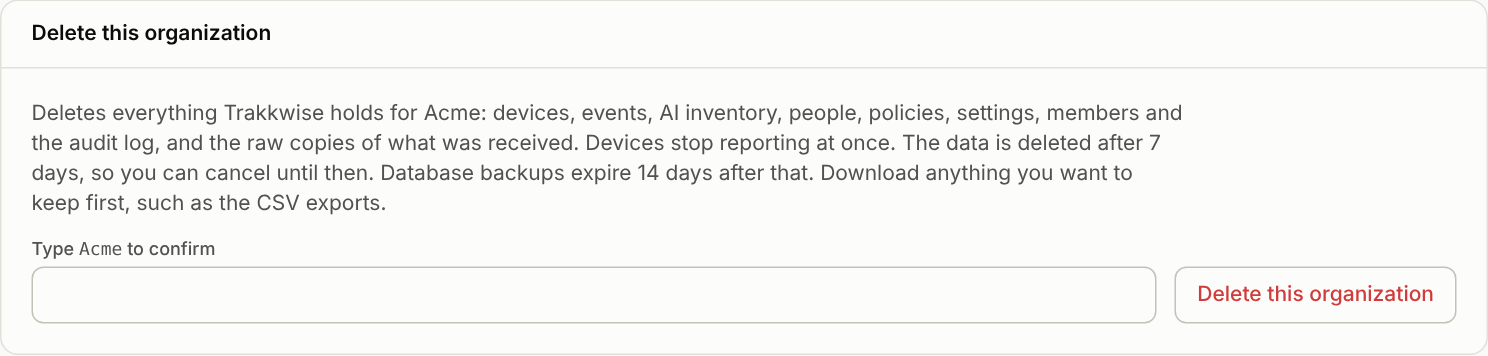
Delete your organization
When you stop using Trakkwise, an admin can delete everything it holds for your organization: devices, events, AI inventory, people, policies, settings, members and the audit log, and the raw copies of what was received.
- Download anything you want to keep first, such as the CSV exports.
- Open Settings → General, and find Delete this organization.
- Type your organization's name to confirm and select Delete this organization.
Devices stop reporting at once. The data is deleted after 7 days, so you can cancel until then: every console page shows a banner with Cancel deletion. Database backups expire 14 days after that.
Screenshot Delete this organization, in Settings → General