The spend assistant
People can chat with Trakkwise in Microsoft Teams or Slack and ask about their own AI spend: what they've spent this month, why it went up, whether they're on track for their budget, and which tool costs them the most. Claude answers from their own numbers in Trakkwise. Admins turn it on in Settings → Assistant. This page also covers the personal spend summary, which sends each person their numbers on a schedule.
What it answers, and what it can't see
People ask in their own words, for example:
- How much have I spent on AI this month?
- Why did my spending go up last week?
- Am I on track for my budget?
- Which AI tool costs me the most?
To answer, Claude can look up only the person asking: their spend over a period (by tool and model, and whether it was billed, allocated from a shared bill or estimated), a comparison between two periods, their spend day by day, their monthly budget if they have one, and their use (sessions, prompts, requests, tokens, credits, lines of code kept).
- It can't see anyone else's spend. Asked about a colleague, a team or the whole organization, it says it can only answer about their own use, and that an admin or manager can see more in Trakkwise.
- It never sees what anyone typed into AI tools.
- Questions and answers aren't stored. Trakkwise keeps who asked and when, for the rate limit.
- Each person can ask 30 questions an hour.
The question, the asker's email and the numbers Claude looks up go to Anthropic, Trakkwise's subprocessor, while the answer is worked out. See Subprocessors.
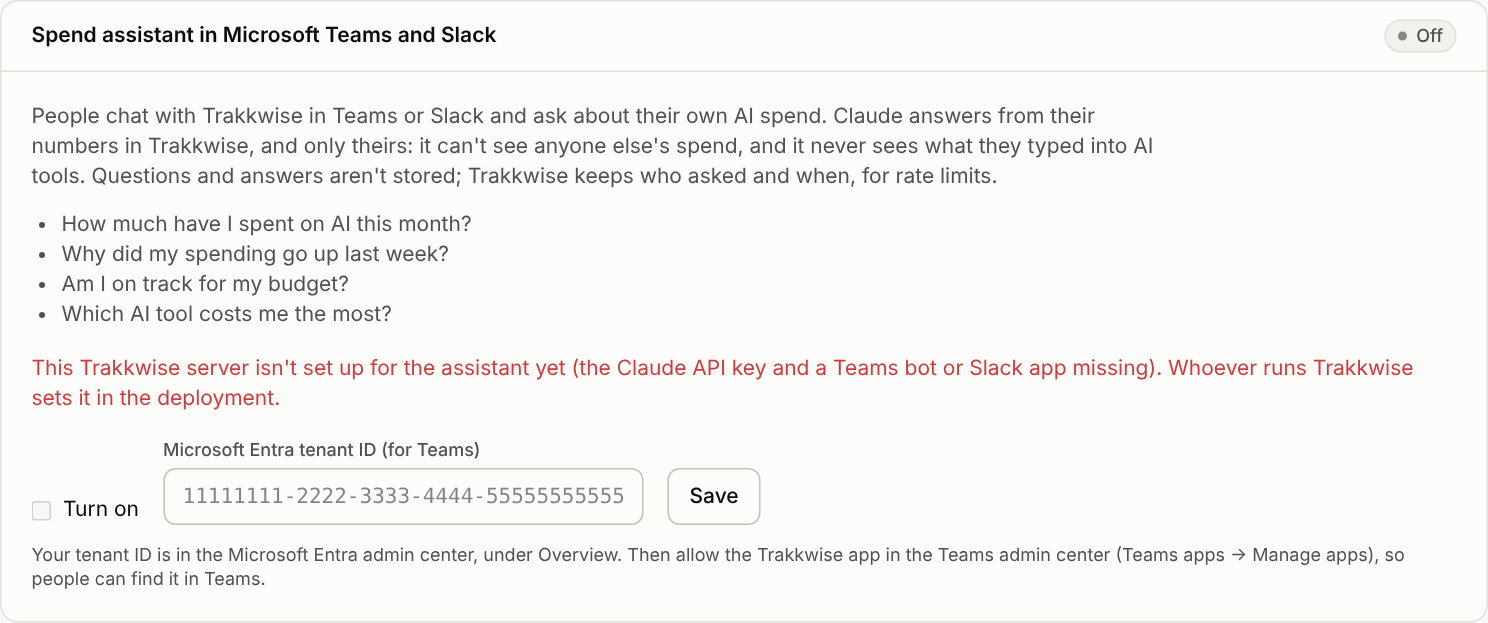
Screenshot Settings → Assistant: turning the assistant on, the Teams tenant ID and the Slack card
Before you start
The assistant needs your Trakkwise server to have a Claude API key and a Teams bot or Slack app. If Settings → Assistant says This Trakkwise server isn't set up for the assistant yet, ask whoever runs your Trakkwise deployment. On Trakkwise's own cloud this is already done.
Turn it on for Microsoft Teams
- Open Settings → Assistant.
- In Microsoft Entra tenant ID (for Teams), enter your tenant ID. It's in the Microsoft Entra admin center, under Overview. If you've connected Microsoft 365 Copilot, it's filled in for you.
- Tick Turn on and select Save.
- In the Teams admin center (Teams apps → Manage apps), allow the Trakkwise app, so people can find it in Teams. The page shows the app's ID.
People then open a one-to-one chat with Trakkwise in Teams. In a group chat or channel, Trakkwise replies that it answers only in a one-to-one chat, so people's numbers stay private. Trakkwise finds each person by their account in your directory; if it can't, it says so.
Add it to Slack
- In Settings → Assistant, in the Slack card, select Add to Slack.
- Approve the Trakkwise app for your workspace. A Slack admin may need to approve it.
- Back in Trakkwise, the card says Installed, with your workspace's name.
The app reads only direct messages sent to it, and each person's email from their Slack profile, to look up their own numbers. It answers only in direct messages. To remove it, select Remove from Slack.
The assistant must also be turned on (Turn on, above). If it's off, Trakkwise replies that it isn't turned on for your organization yet.
Screenshot The Slack card before the app is installed

See how it's used
The Last 30 days card shows how many questions were asked, by how many people, and how many tokens Claude used.
The personal spend summary
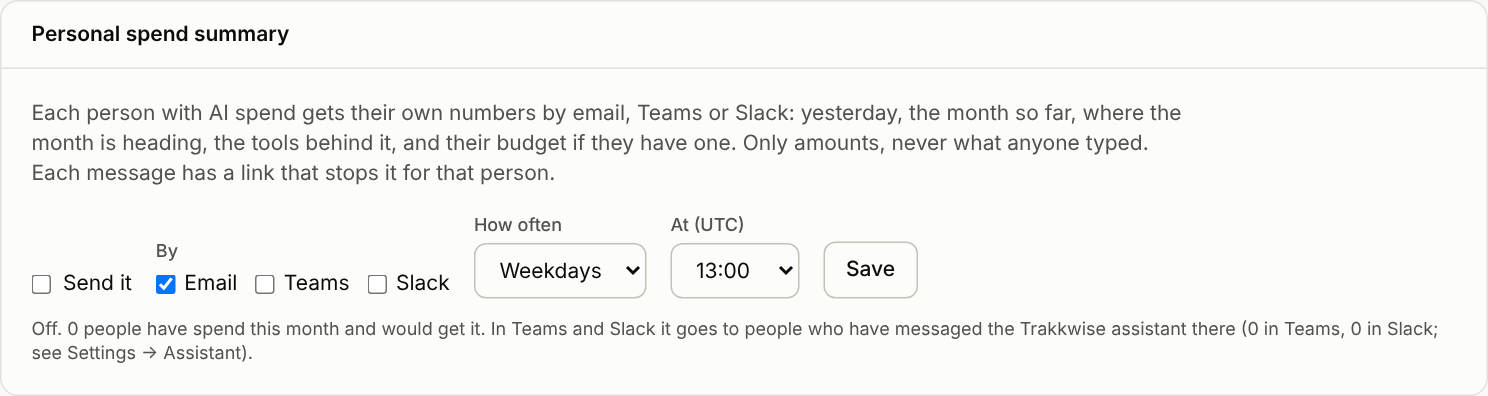
Each person with AI spend can also get their own numbers on a schedule: yesterday, the month so far, where the month is heading, the tools behind it, and their budget if they have one. It shows only amounts, never what anyone typed. Every message has a link that stops it for that person.
- Open Settings → Budgets, and find Personal spend summary.
- Tick Send it.
- Under By, choose Email, Teams, Slack or several. In Teams and Slack it goes only to people who have messaged the Trakkwise assistant there.
- Choose How often (Weekdays, Every day or Mondays) and At (UTC), then Save.
Only people whose name in Trakkwise is an email address, with spend this month or yesterday, get it. The card says how many people would get it, and how many stopped it from the link.
Screenshot The Personal spend summary card in Settings → Budgets
For alerts to your team about budgets and unusual spend, see Alerts.