Members and roles
Members are the people who use the Trakkwise console: your IT, security, finance and legal teams. Each has one role, which decides what they can see and change. This guide covers the roles, inviting and removing people, who reviews AI requests and reads captured prompts, hiding names from people who don't need them, and API keys. Employees whose devices report don't need to be members.
Everything here is under Settings → Members and Settings → General, for admins.
Roles
| Role | Can |
|---|---|
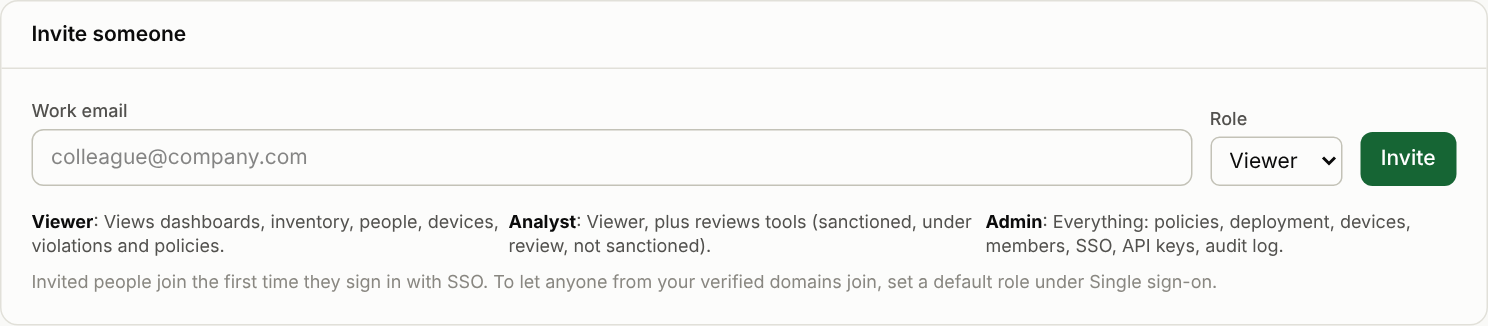
| Viewer | Read the dashboards, Analytics, Spend, AI inventory, AI registry, AI vendors, Compliance, People, Devices, Risk, Violations and Policies. Ask for a new AI tool in the AI registry |
| Analyst | Everything a viewer can, plus review tools (set them sanctioned, under review or not sanctioned), assess AI vendors, and attest compliance items |
| Admin | Everything: policies, deployment and enrollment tokens, devices, members, single sign-on, SCIM, integrations, API keys, alerts, budgets, privacy settings, the gateway, SIEM export and the audit log |
Some things depend on more than the role:
- Reviewing AI requests (the AI registry): only members set as reviewers for Security, Legal or Compliance decide for that team. See Governance.
- Reading captured prompts: only members set as Prompt reviewer, whatever their role. See Privacy settings.
People see the console in the role they have now: changing someone's role applies to their open sessions right away.
Screenshot Settings → Members: inviting someone, with what each role can do
Inviting people
People join by signing in with single sign-on, so set that up first (Setting up single sign-on).
- Go to Settings → Members.
- In Invite someone, type their Work email, choose a Role, and press Invite.
- They go to the console's sign-in page, type their work email and press Continue with SSO. They join with the role you chose the first time they sign in.
Invitations last 14 days. Pending ones are listed under Pending invitations, with Cancel to withdraw one. Inviting the same address again renews it, with the role you choose.
Instead of inviting everyone, you can let anyone from your verified domains join with a default role (Choosing who can sign in), or have your identity provider add people with SCIM. People added by SCIM show Provisioned next to their name.
Changing a role or removing someone
In the Members table:
- Change a role: pick it in the Role column and press Save. "Role updated. It applies to their open sessions right away."
- Remove someone: press Remove. Their sessions end at once. They can't sign in again unless they're invited again (or join through a default role or SCIM).
The organization always keeps at least one admin. Trying to demote or remove the last one says "This is the last admin. Make someone else an admin first." SCIM never demotes or removes the last admin either.
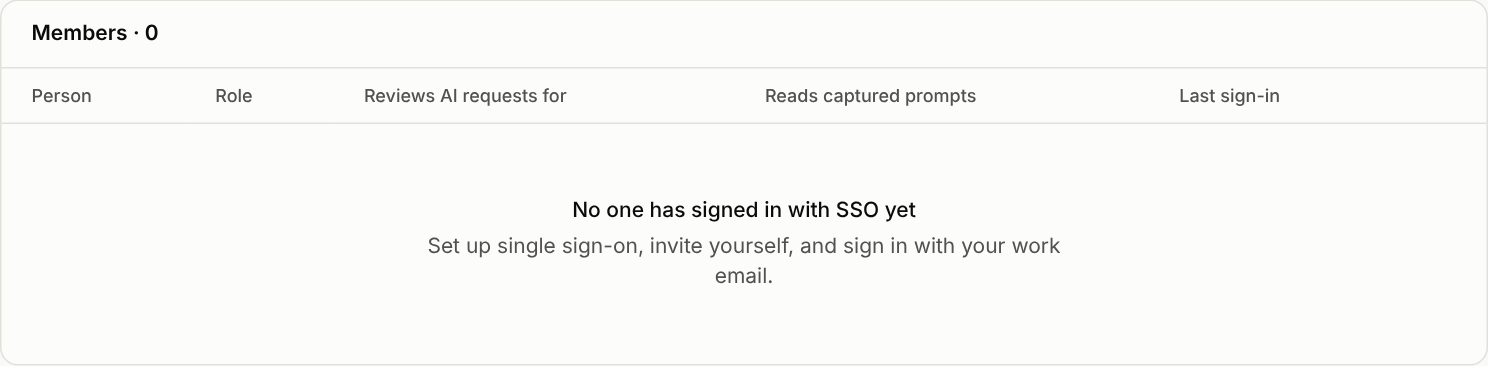
Screenshot The Members table: roles, review teams, prompt reviewers and last sign-in
Who reviews AI requests
When someone asks for a new AI tool or use in the AI registry, Security, Legal or Compliance review it, depending on its risk. In the Reviews AI requests for column, tick Security, Legal and Compliance for the people who decide for each team, and press Save. Someone can review for more than one team. See Governance for how requests work.
Who can read captured prompts
If you turn on prompt capture, only prompt reviewers can read a captured prompt, one at a time, after giving a reason; every read is in the audit log. Tick Prompt reviewer for each person who may, and press Save. Prompt capture is off unless an admin turns it on; see Privacy settings.
Hiding names from viewers and analysts
Viewers and analysts can see AI use without seeing who it was:
- Go to Settings → Privacy.
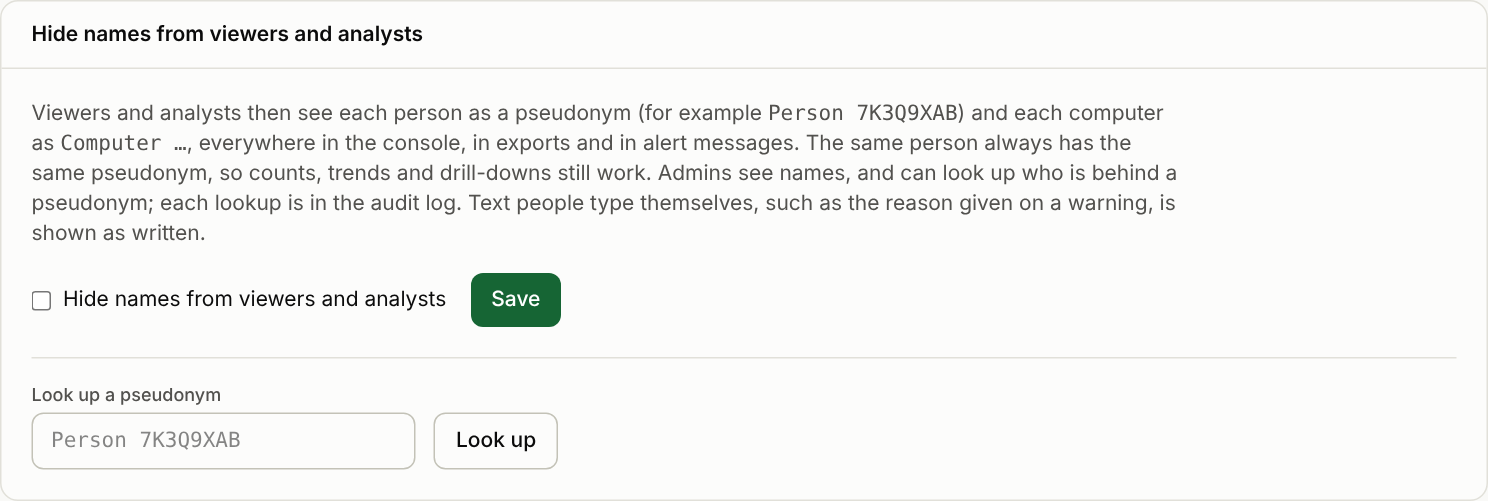
- In Hide names from viewers and analysts, tick the box and press Save.
They then see each person as a pseudonym such as Person 7K3Q9XAB, and each computer as
Computer …, everywhere: pages, exports and alert messages. The same person always has the same
pseudonym, so counts and trends still work. Admins still see names. Text people type themselves,
such as the reason they gave on a warning, is shown as written.
To find out who is behind a pseudonym, an admin types it into Look up a pseudonym and presses Look up. Each lookup is recorded in the audit log.
Screenshot Settings → Privacy: hiding names, and looking up a pseudonym
API keys
API keys are for automation, and for signing in before single sign-on works (on the sign-in page, Sign in with an API key). A key acts as an admin.
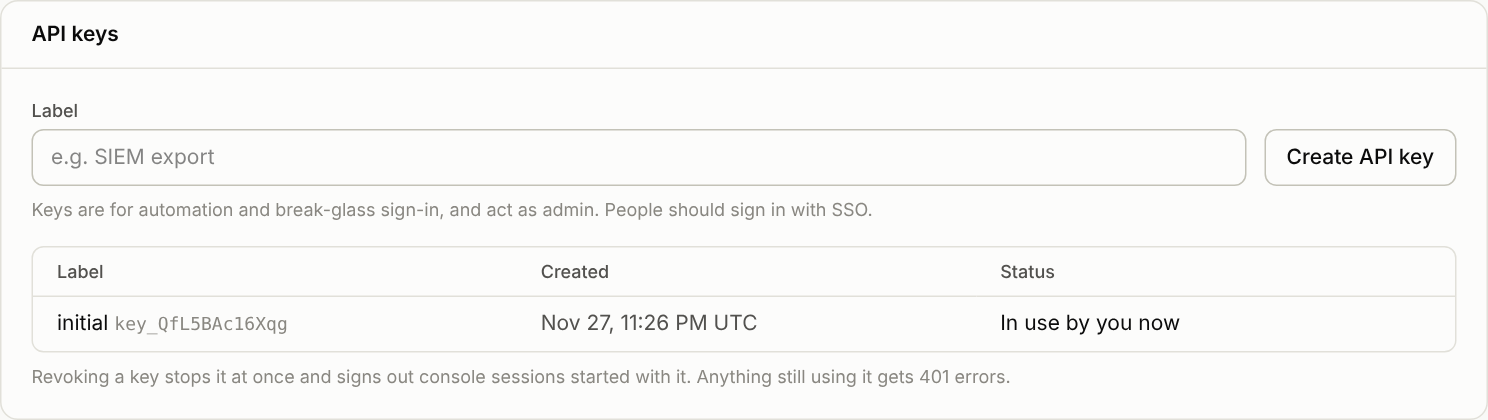
- Create one: Settings → General → API keys, give it a Label (what it's for) and press Create API key. Copy it right away: "New API key: copy it now, it is not shown again."
- Keep them few. People should sign in with single sign-on, so their actions are recorded under their name. A key's actions are recorded as the key.
- Turn off key sign-in to the console once single sign-on works: Requiring single sign-on. Keys keep working for automation.
- Revoke one in the same list: Revoke next to the key. It stops working at once, and any console session started with it is signed out; scripts still using it get 401 errors. You can't revoke the key you're signed in with (sign in with single sign-on or another key first). Revoked keys stay in the list, marked with when, and the audit log records who revoked which.
- If a key may have leaked, revoke it, create a new one for whatever used it, and tell us (Getting help).
The integration-specific credentials (gateway keys, telemetry tokens, SCIM tokens, webhook secrets) are separate, and each can do only its own job. See the API overview.
Screenshot Settings → General: API keys
The audit log
Settings → Audit Log lists everything admins, your identity provider and Trakkwise did in your organization, newest first: invitations, role changes, removals, single sign-on changes, API keys, policy changes, pseudonym lookups, prompt reads and more. Each entry names who (the person's email, the API key, or the identity provider), what happened in words, what it was done to, and when (UTC). Settings → General shows the latest ten.
Screenshot Settings → Audit Log
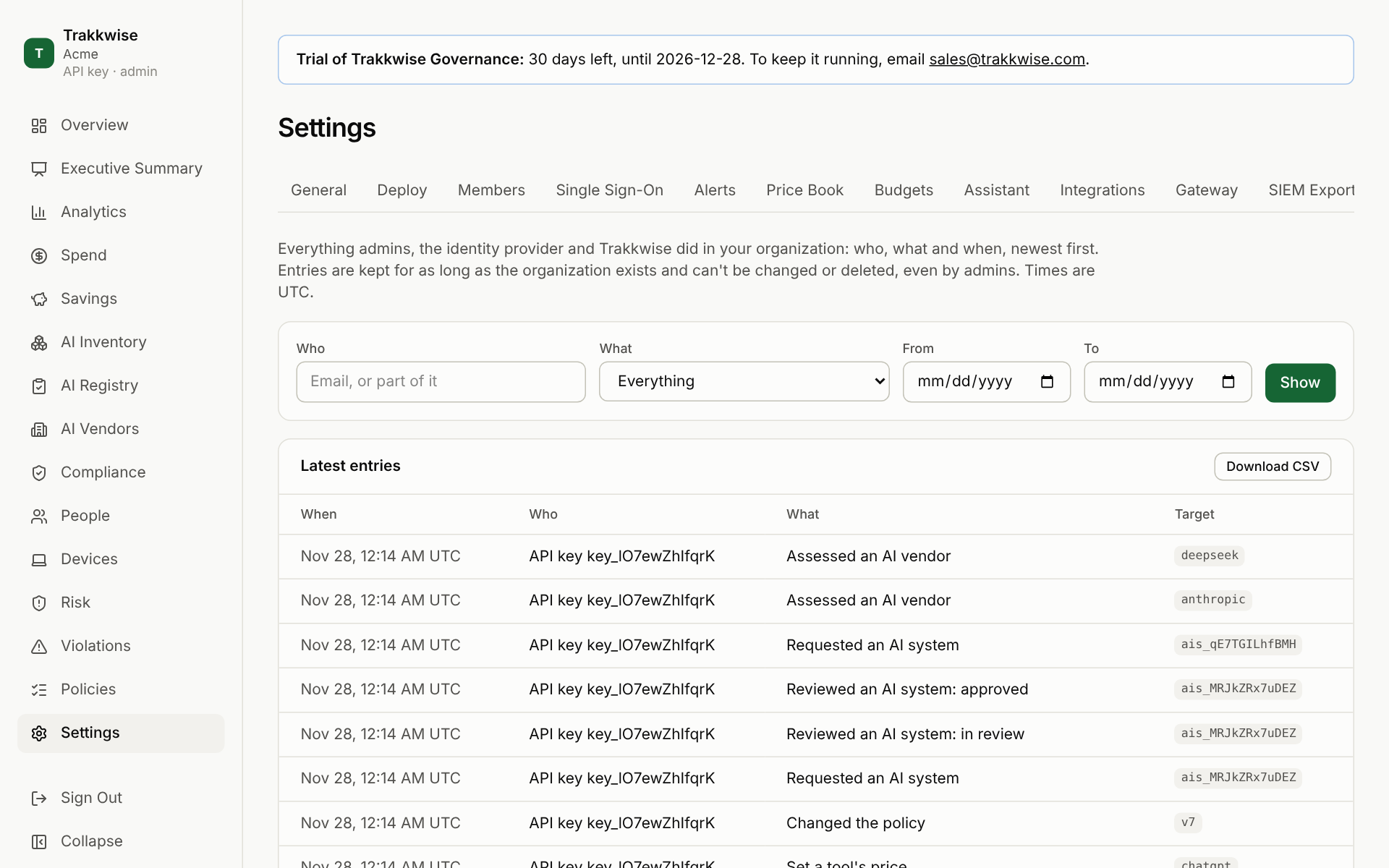
- Filter by who (an email, or part of one), by what kind of thing happened (for example Members and roles or API keys), and by a range of days. Clear shows everything again.
- Older entries pages back through the whole history, 100 at a time.
- Download CSV exports what the filters show, up to 5,000 entries, with both the words and the action codes the API and SIEM export use.
Only admins see the audit log. Nobody can change or delete an entry, admins included. The API reads
it at GET /admin/v1/tenants/{tenant}/audit, with the same filters (actor, action, from,
to) and before for paging, and SIEM export can stream it (Settings → SIEM Export).