Setting up single sign-on
People sign in to the Trakkwise console with their work account, through your identity provider: Okta, Microsoft Entra ID, Google Workspace, or any other that supports OpenID Connect. This guide covers registering Trakkwise with your identity provider, connecting it in the console, proving your email domain, and choosing who can sign in. It takes about 20 minutes. You need to be an admin in the console, and able to create applications in your identity provider and DNS records for your domain.
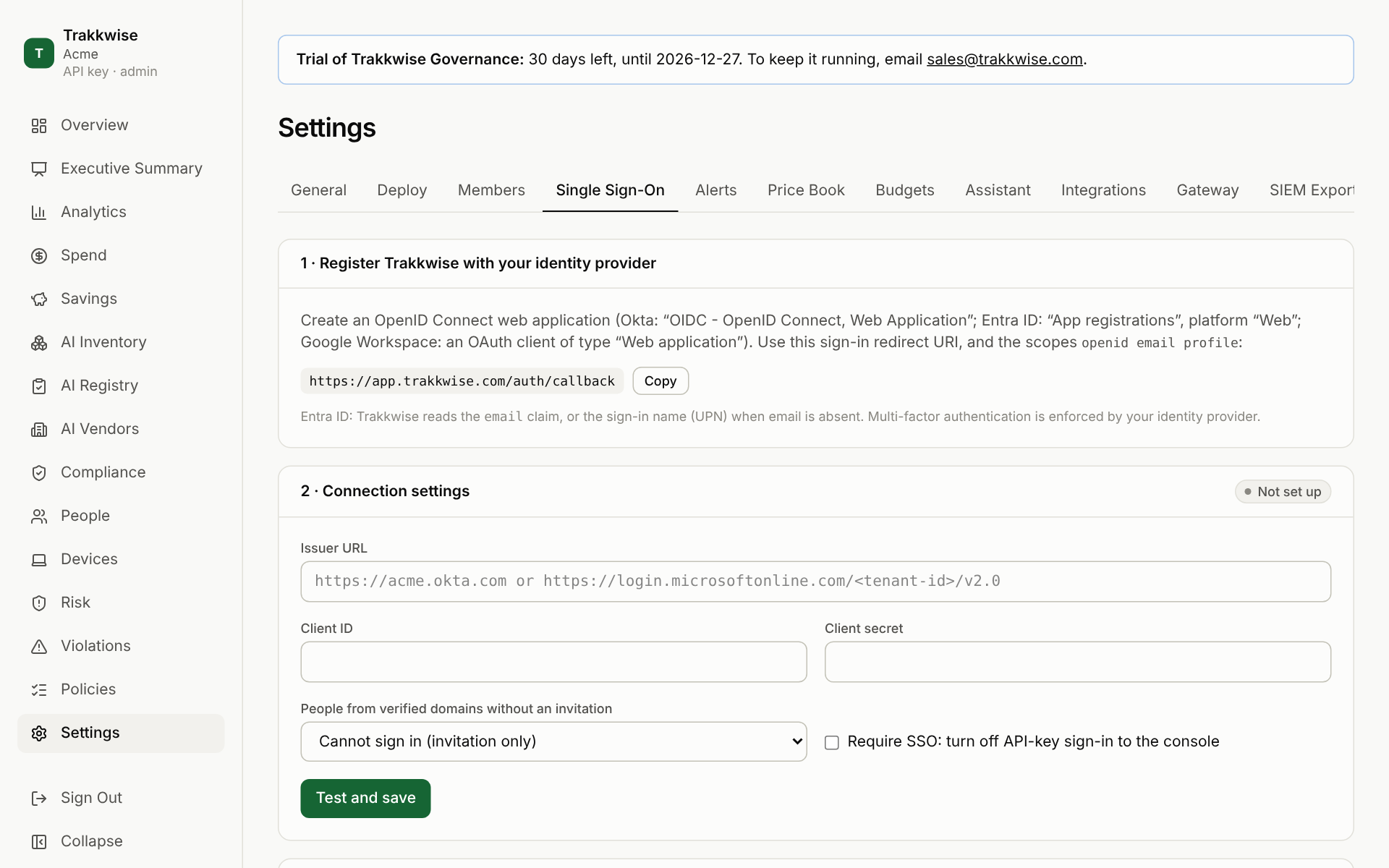
Everything here is under Settings → Single Sign-On, which shows four numbered steps. Steps 1 to 3 are single sign-on; step 4, provisioning with SCIM, is optional and has its own guide.
Screenshot The Single Sign-On page before setup
Before you start
- Sign in to the console with the organization ID and API key you were given (on the sign-in page, open Sign in with an API key). That's how you get in before single sign-on works.
- Decide which email domains your people sign in with, such as
acme.com. You'll prove each one with a DNS record. - Multi-factor authentication and password rules stay with your identity provider. Trakkwise doesn't ask for a second factor itself.
1. Register Trakkwise with your identity provider
Create an OpenID Connect web application in your identity provider. Step 1 on the page shows the
sign-in redirect URI to use, with a Copy button. Trakkwise asks for the scopes
openid email profile.
Screenshot Step 1: the sign-in redirect URI to copy

Keep three things from your identity provider for step 2: the issuer URL, the client ID and the client secret. Menu names can differ slightly in your version of each admin console.
Okta
- In the Okta Admin Console, go to Applications → Applications → Create App Integration.
- Choose OIDC - OpenID Connect, then Web Application.
- Name it "Trakkwise". Under Sign-in redirect URIs, paste the redirect URI from step 1. Remove any sign-out redirect URI Okta adds; Trakkwise doesn't use one.
- Under Assignments, choose who may use it (everyone, or a group such as "Trakkwise users").
- Save. Copy the Client ID and Client secret from the app's General tab.
- The issuer URL is your Okta address, such as
https://acme.okta.com.
Microsoft Entra ID
- In the Microsoft Entra admin center, go to Identity → Applications → App registrations → New registration.
- Name it "Trakkwise", and choose Accounts in this organizational directory only.
- Under Redirect URI, choose the platform Web and paste the redirect URI from step 1. Register.
- On the app's Overview, copy the Application (client) ID and the Directory (tenant) ID.
- Go to Certificates & secrets → New client secret. Copy its Value (not its ID) right away; Entra shows it only once. Note when it expires: sign-in stops working then, until you put a new secret in step 2.
- The issuer URL is
https://login.microsoftonline.com/<Directory (tenant) ID>/v2.0.
Trakkwise reads the email claim. Entra often leaves it out; Trakkwise then uses the sign-in name
(UPN), so people's sign-in names should be their email addresses.
Google Workspace
- In the Google Cloud console, pick or create a project for Trakkwise.
- Set up the OAuth consent screen with the user type Internal, so only your Workspace accounts can sign in.
- Go to APIs & Services → Credentials → Create credentials → OAuth client ID, and choose the application type Web application.
- Under Authorized redirect URIs, paste the redirect URI from step 1. Create it.
- Copy the Client ID and Client secret.
- The issuer URL is
https://accounts.google.com.
Other identity providers
Any provider that supports OpenID Connect with the authorization code flow works. Trakkwise finds
the rest from the issuer's /.well-known/openid-configuration. The issuer must use https and be
reachable from the internet. The ID token must carry the person's email address, and must not mark
it unverified.
2. Connect it in the console
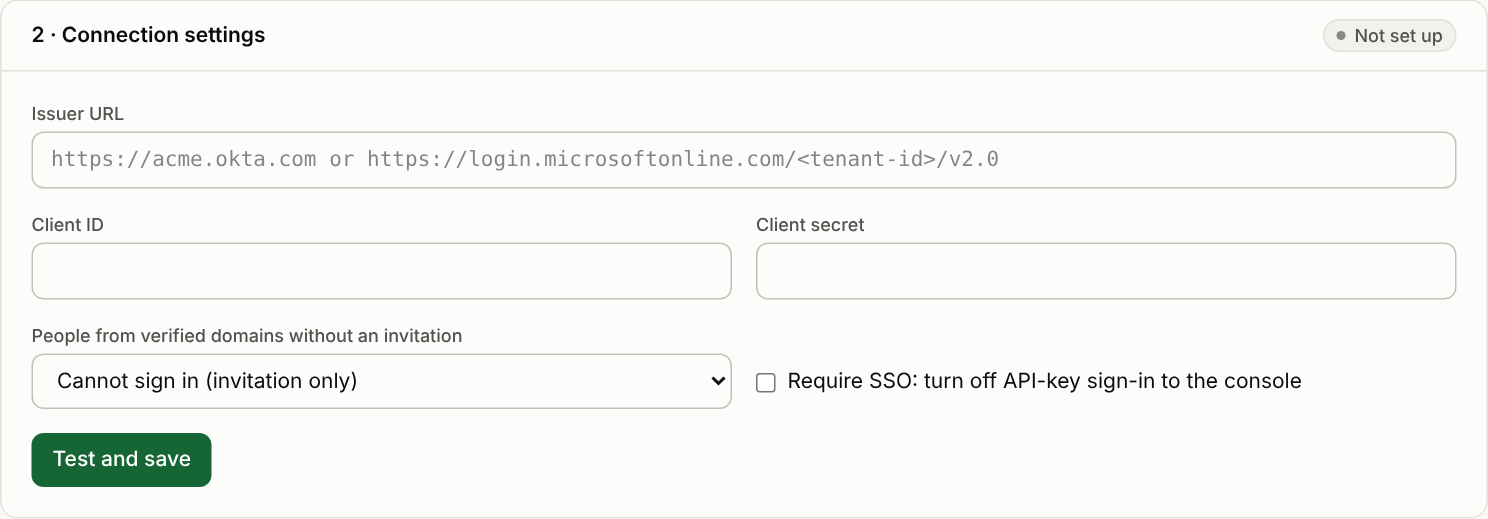
In 2 · Connection settings:
- Issuer URL: from step 1, for example
https://acme.okta.comorhttps://login.microsoftonline.com/<tenant-id>/v2.0. - Client ID and Client secret: from step 1. The secret is stored encrypted and never shown again; to keep it when you change other settings, leave the field empty.
- People from verified domains without an invitation: leave it at Cannot sign in (invitation only) for now. See Choosing who can sign in.
- Leave Require SSO off for now.
- Press Test and save. Trakkwise loads your identity provider's settings before saving, so a wrong issuer URL is caught here. The card then shows Connected.
Screenshot Step 2: connection settings
3. Verify your email domains
Sign-in is routed to your identity provider by the domain of the email address people type. Each domain has to be proved with a DNS record, so no other organization can claim it.
- In 3 · Verify your email domains, type the Domain (such as
acme.com) and press Add domain. - The table shows a DNS record to create, such as
_trakkwise-verify.acme.com TXT "trakkwise-verify=…". Create that TXT record with your DNS provider. - Press Verify. DNS changes can take a few minutes to show; press Verify again if needed. The status changes from Waiting for DNS to Verified.
Add every domain your people sign in with (for example acme.com and acme.co.uk). Once verified,
you can delete the TXT record if you like; Trakkwise doesn't check it again.
Screenshot Step 3: a domain waiting for its DNS record

4. Invite yourself and test
- Go to Settings → Members, invite yourself with your work email and the role Admin (see Members and roles).
- Open a private browser window, go to the console's sign-in page, type your work email and press Continue with SSO. You go to your identity provider's sign-in page, then back to the console.
- Check Settings → General: Your account shows your email, and Method: Single sign-on.
Choosing who can sign in
The setting People from verified domains without an invitation decides what happens when someone from one of your verified domains signs in for the first time without an invitation:
| Setting | What happens |
|---|---|
| Cannot sign in (invitation only) | They're told they're not a member and to ask an admin. The default |
| Join as Viewer, Analyst or Admin | They join with that role the first time they sign in ("just in time") |
An invitation always wins: someone invited as an analyst joins as an analyst, whatever this setting says. Your identity provider still decides who can sign in at all, through the app's assignments, so "Join as Viewer" with the app assigned to one group lets just that group in.
To add and remove people automatically from your identity provider instead, use SCIM provisioning.
Requiring single sign-on
Once people sign in with single sign-on, you can turn off API-key sign-in to the console:
- Check that at least one domain is Verified and at least one admin has signed in with single sign-on. Trakkwise refuses to turn it on otherwise, so nobody is locked out.
- In 2 · Connection settings, tick Require SSO: turn off API-key sign-in to the console, and press Test and save.
After that, signing in with an API key in the console is refused ("This organization requires single sign-on. Sign in with your work email."). API keys keep working for automation through the API. While single sign-on is required, you can't remove your last verified domain.
How long sessions last
A console session ends after 12 hours, or after 2 hours without activity, whichever comes first. Signing out ends it at once. Removing someone, or changing their role, applies to their open sessions right away.
Changing settings later
- New client secret (for example when an Entra secret expires): paste it into Client secret and press Test and save.
- Another identity provider: change the issuer URL, client ID and secret, and press Test and save. People keep their membership and role; each person is matched by email address the first time they sign in through the new one.
- Remove a domain: press Remove next to it. People from that domain can no longer start single sign-on.
Every change is in the audit log (Settings → Audit Log).
Troubleshooting
| Message | What to do |
|---|---|
| "Single sign-on is not set up for acme.com." | The domain isn't verified for any organization, or the connection isn't saved. Check steps 2 and 3, and that the person typed their work email |
| "acme.com is already claimed by another organization." | Another Trakkwise organization has added that domain. Email support@trakkwise.com |
| "TXT record not found yet. Add _trakkwise-verify.… with the value …" | The DNS record isn't visible yet, or its name or value differs. Check both exactly, wait a few minutes, and press Verify again |
| "could not load the IdP's OpenID configuration from …" | The issuer URL is wrong. For Entra ID, include /v2.0 and your tenant ID; for Okta, use your Okta address without a path |
| "the issuer must use https" | Use the https:// issuer address |
| "… is not a member of this organization. Ask an admin to invite you." | Invite them under Settings → Members, or choose a "Join as" role for your verified domains |
| "The identity provider refused sign-in: …" | Your identity provider's own reason follows; usually the person isn't assigned to the app |
| "sign-in failed at the identity provider: …" | Often a wrong or expired client secret, or a redirect URI that doesn't exactly match step 1 |
| "the identity provider did not return an email address" | Make sure the app's ID token includes the email (email scope); in Entra ID, that sign-in names are email addresses |
| "the identity provider says this email address is not verified" | Verify the email address in your identity provider |
| "This sign-in link has expired. Start again." | The sign-in took more than 10 minutes, or was already used. Start again from the sign-in page |
| "Before requiring SSO, verify a domain and have at least one admin sign in with SSO, so nobody is locked out." | Do both, then tick Require SSO again |
| "Single sign-on is not available yet: the API has no SSO_SECRET_KEY." | Email support@trakkwise.com |