Reading the console
What each of the console's main pages shows, and what you can do there: the Overview, Analytics, AI Inventory, People, Devices, Violations, Policies and Risk. Spend, governance and settings have their own guides: AI spend, governance and members and roles.
Most pages show 30 days; Violations shows 7. Charts have View as table under them, for the numbers. Lists with Export CSV download what the page shows, with its filters.
Overview
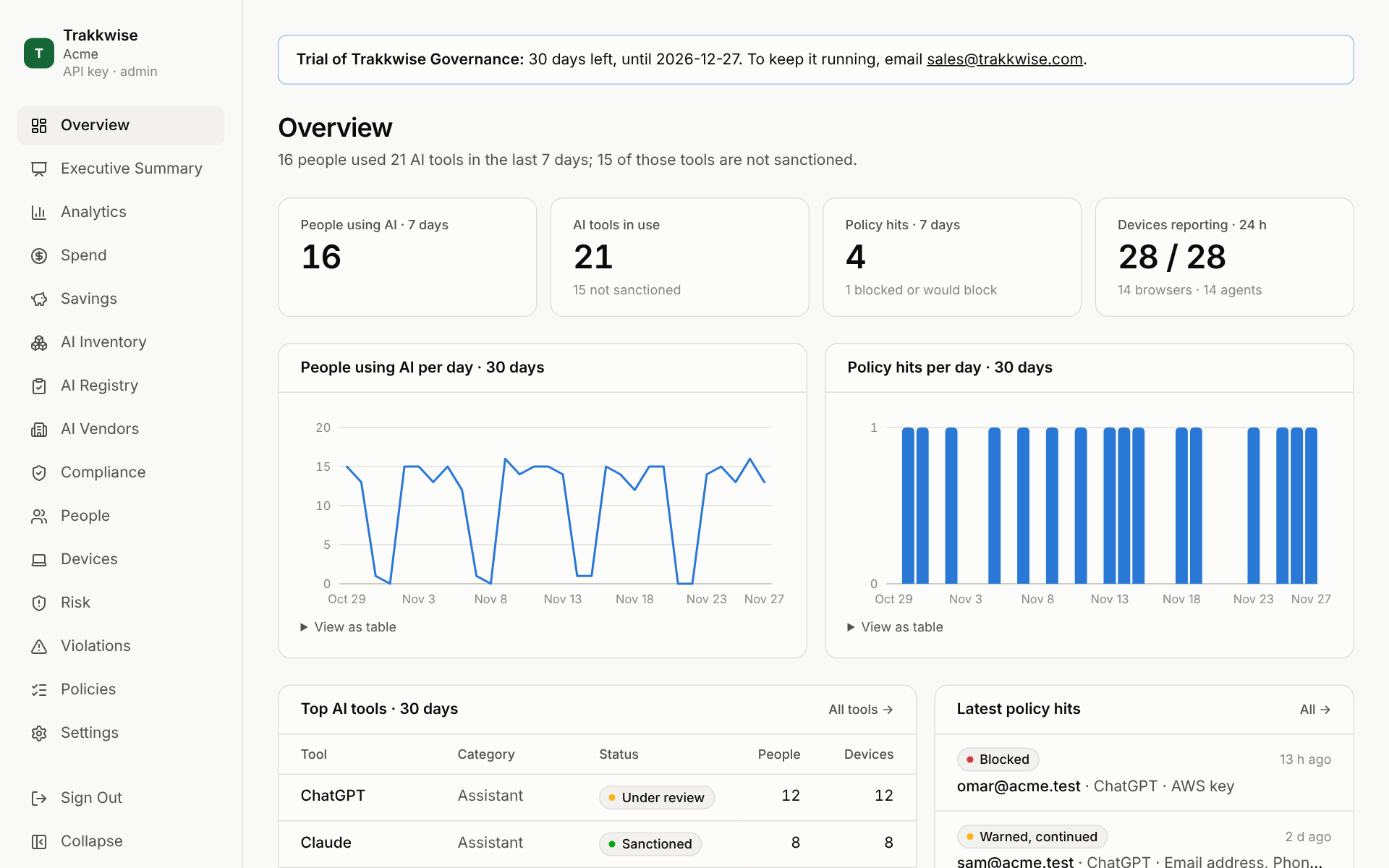
The first page after signing in. Its header sums up the week: how many people used how many AI tools in the last 7 days, and how many of those tools aren't sanctioned.
| Tile | What |
|---|---|
| People using AI · 7 days | People who used any AI tool |
| AI tools in use | Tools seen in the last 30 days, and how many aren't sanctioned |
| Policy hits · 7 days | Times a policy acted, and how many were blocks |
| Devices reporting · 24 h | Devices heard from in the last day, out of all enrolled |
Below them: people using AI per day, policy hits per day, the Top AI tools over 30 days, and the Latest policy hits. All tools and All open the full lists.
Screenshot The Overview page
Analytics
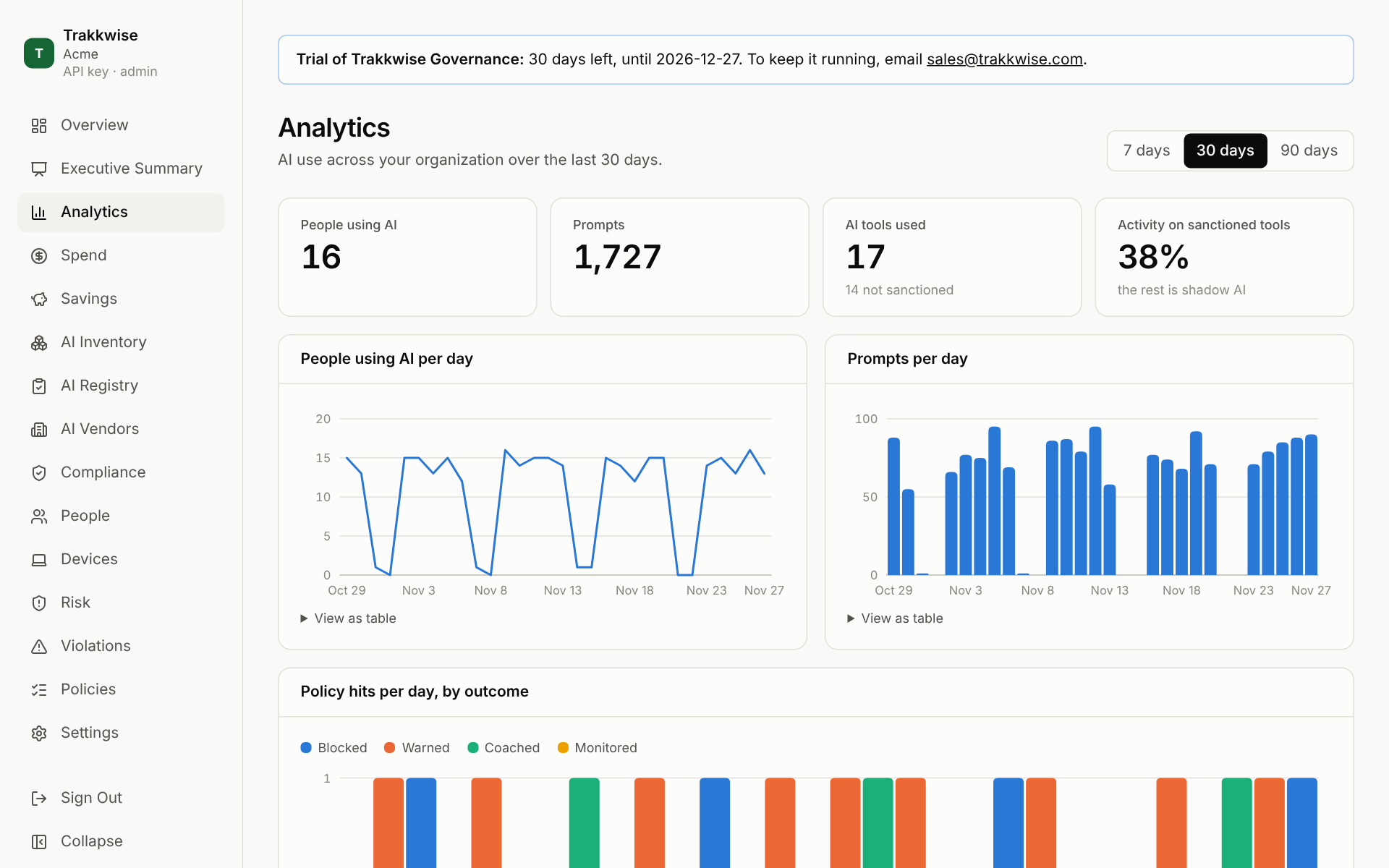
AI use across your organization. Choose 7 days, 30 days or 90 days at the top right.
- Adoption: people using AI, prompts, AI tools used, and the share of activity on sanctioned tools (the rest is shadow AI); people and prompts per day; policy hits per day by outcome; tools by the number of people using them; and the sensitive data found in prompts and uploads.
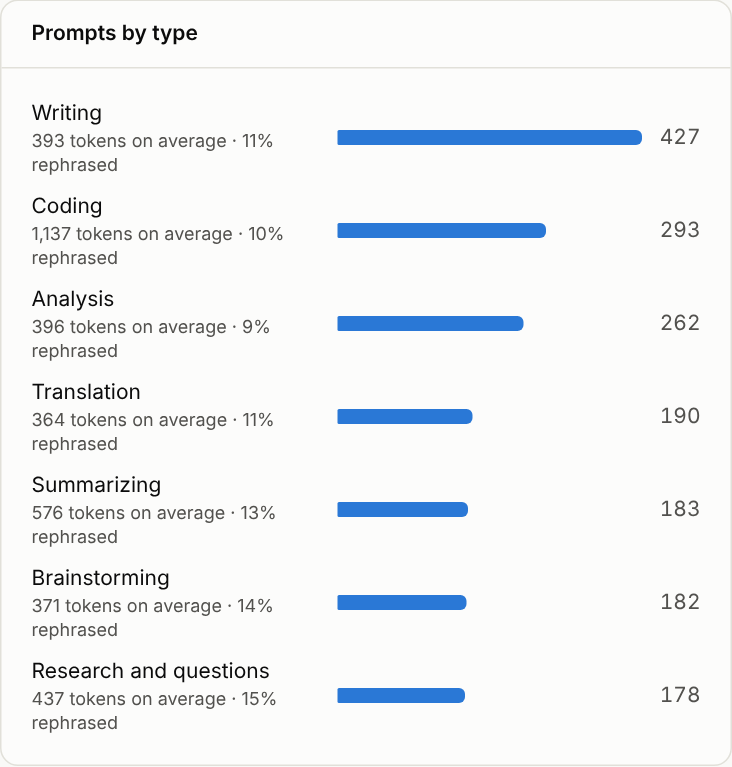
- Prompt insights: prompts by type (coding, writing, summarizing and so on), estimated tokens, rephrased prompts, long pasted context, coaching tips shown, and prompting by tool. These come from labels the browser extension works out on the device: the prompt text itself never leaves it.
- Costs: estimated monthly spend, idle seats and cost by tool and by person, from your price book and what your AI platforms bill. See AI spend.
- Coding assistants: what Claude Code and Codex report about their own use: sessions, prompts, tokens, the tool's own cost estimate, and lines changed. Turn it on as in Claude Code and Codex usage.
Screenshot Analytics: adoption over 30 days
Screenshot Analytics: prompts by type
Site check
At the bottom of Analytics, Site check shows whether the browser extension is reading prompts and uploads on the AI sites it knows in detail (such as ChatGPT, Claude, Gemini, Microsoft Copilot, Perplexity and DeepSeek). On every other AI site it counts visits only.
| Status | What it means |
|---|---|
| Capturing | Prompts are arriving as expected |
| Check this site | People keep visiting the site, but no prompts have arrived for 3 days. The site has probably changed its page, and the extension needs an update from Trakkwise. Visits are still counted, and policies on visiting the site still apply |
| No prompts yet | Visited, but no prompts so far |
| Not used yet | Nobody has visited it |
If a site shows Check this site, tell Trakkwise: the fix is an extension update, which reaches your browsers on its own. You don't need to change anything.
AI Inventory
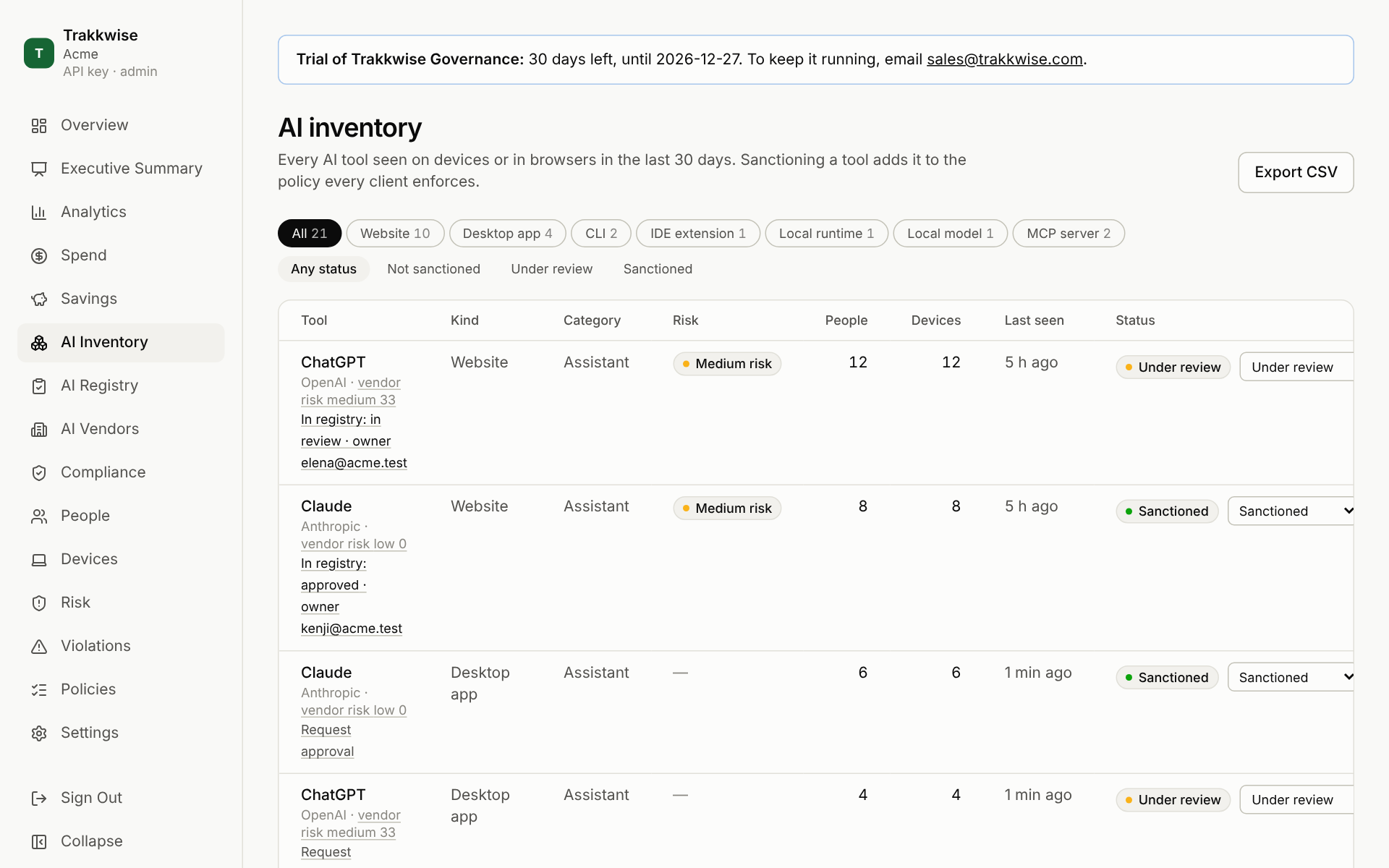
Every AI tool seen on devices or in browsers in the last 30 days: its kind (website, desktop app, CLI, IDE extension, local runtime, local model or MCP server), category, risk, how many people and devices use it, when it was last seen, and its status. Filter by kind and by status at the top.
Analysts and admins set each tool's status: Sanctioned, Under review or Not sanctioned, then Save. Sanctioning a tool adds it to the policy every agent and extension enforces. Reviewing tools is covered in governance.
Screenshot The AI Inventory
People
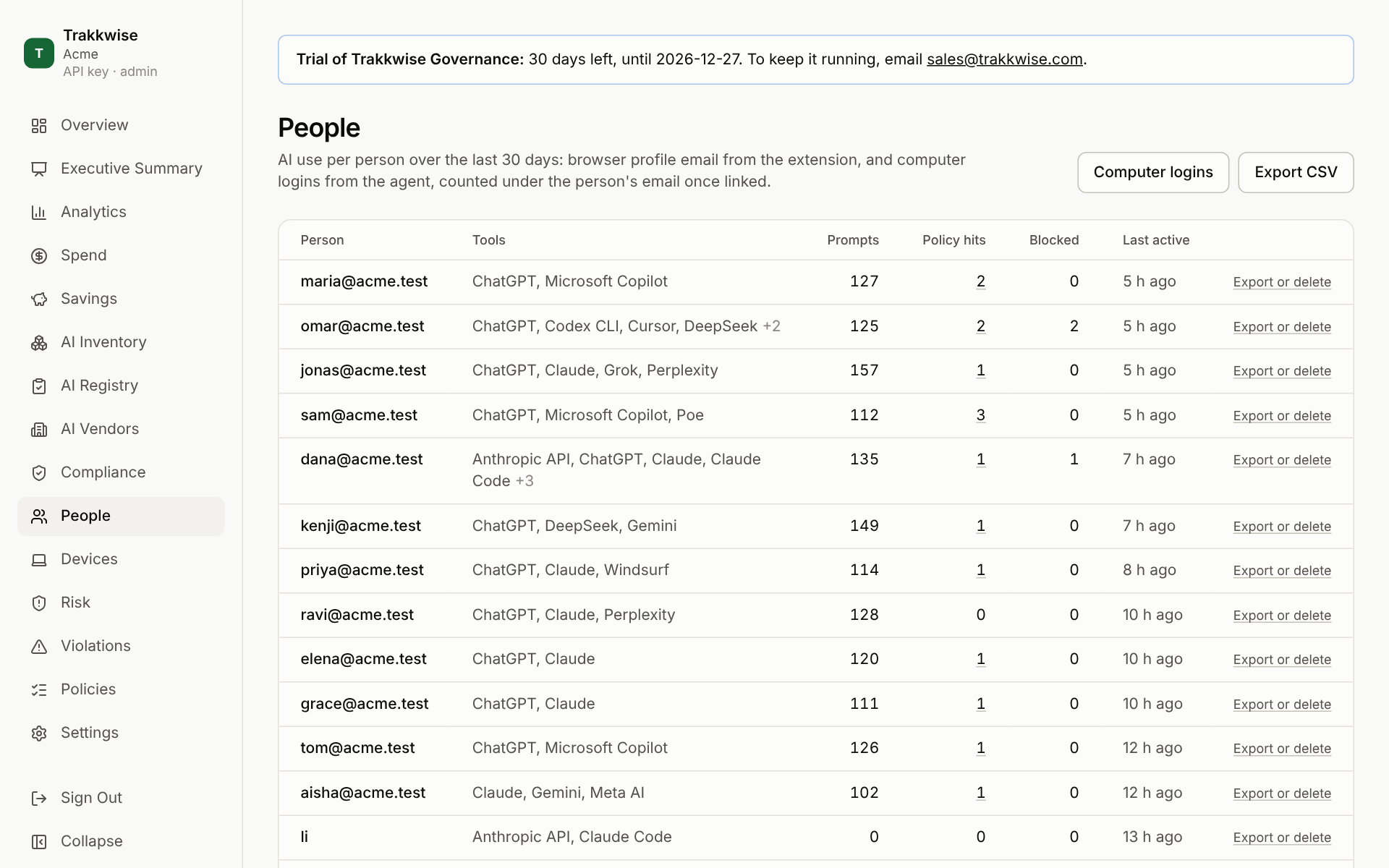
AI use per person over the last 30 days: tools, prompts, policy hits, times blocked and when they were last active. A person is the email the browser extension reports, plus the computer logins the agent reports once they're linked to that email (below).
Admins see Export or delete for each person, which opens their data in Settings → Privacy, for privacy requests.
Screenshot The People page
Computer logins
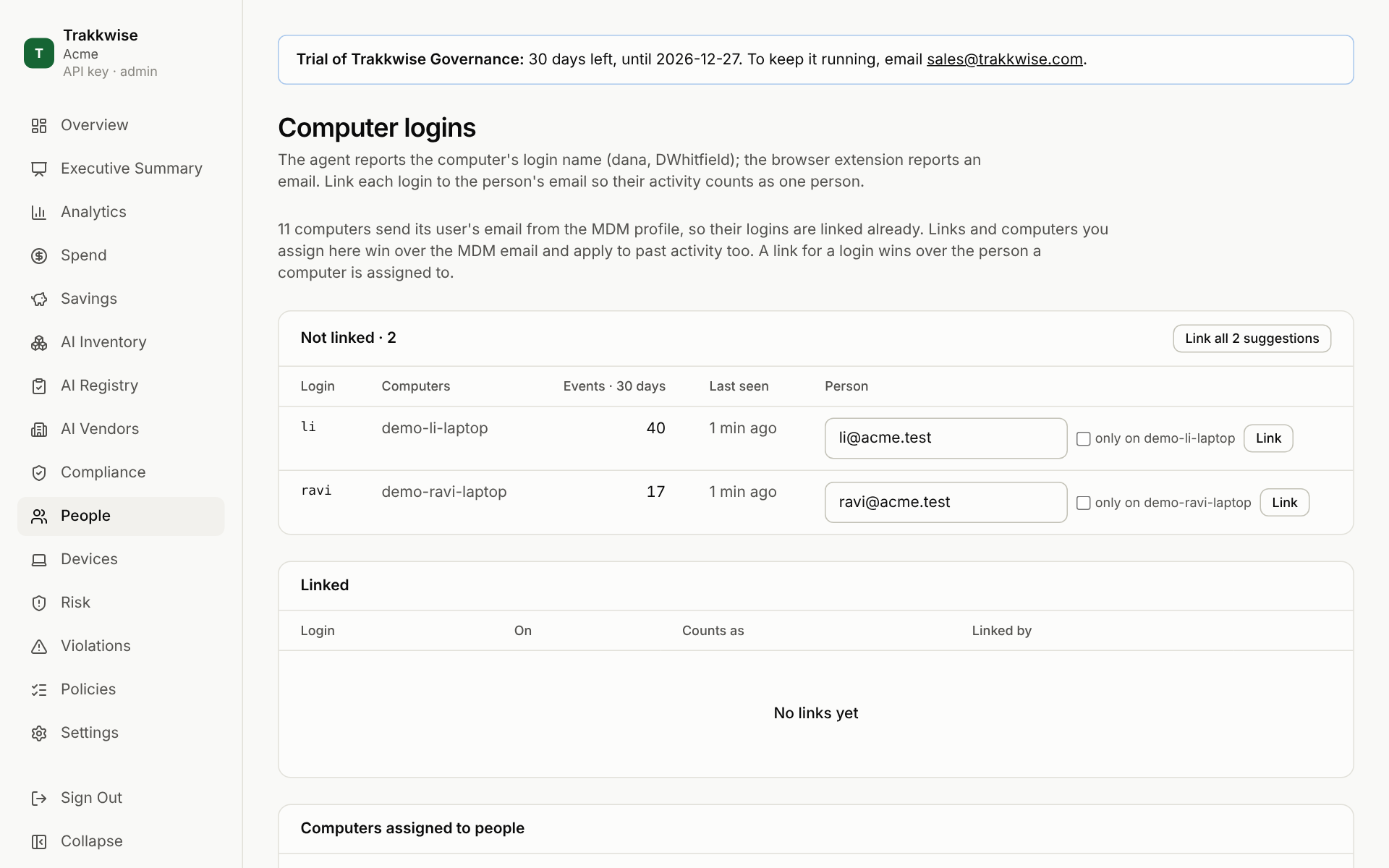
The agent reports the computer's login name (for example dana or DWhitfield), while the browser
extension reports an email. Until a login is linked to an email, it counts as a separate person.
Admins open People → Computer logins:
- Not linked: each login, its events in the last 30 days and its computers. Type the person's email and select Link. Where Trakkwise can guess the email, it's filled in; Link all N suggestions links every guess at once.
- Linked: links made so far. Removing one makes that login's activity count as the login again.
- Computers assigned to people: whole computers assigned to someone, so every login on them counts as that person.
Links and assignments apply to past activity too. The easiest way to avoid most of this is to let your MDM fill in each computer's user email in the agent's settings: see counting each person once.
Screenshot Computer logins waiting to be linked
Importing logins from a spreadsheet
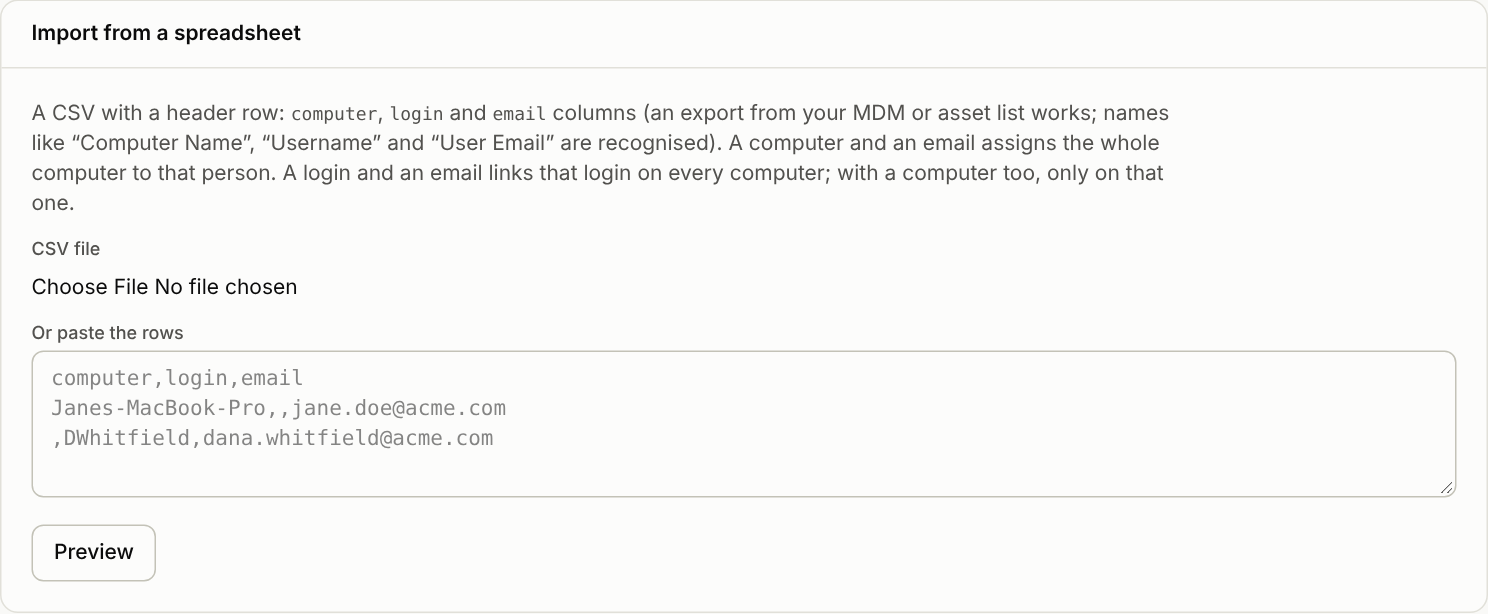
To link many at once, use Import from a spreadsheet at the bottom of Computer logins:
- Export a CSV from your MDM or asset list, with a header row and
computer,loginandemailcolumns. Names like "Computer Name", "Username" and "User Email" are recognised. - Choose the file, or paste the rows, and select Preview.
- Check what each line will do, then select Import N changes.
A computer and an email assign the whole computer to that person. A login and an email link that login on every computer; with a computer too, only on that one. Lines with a problem are skipped.
Screenshot Import from a spreadsheet
Devices
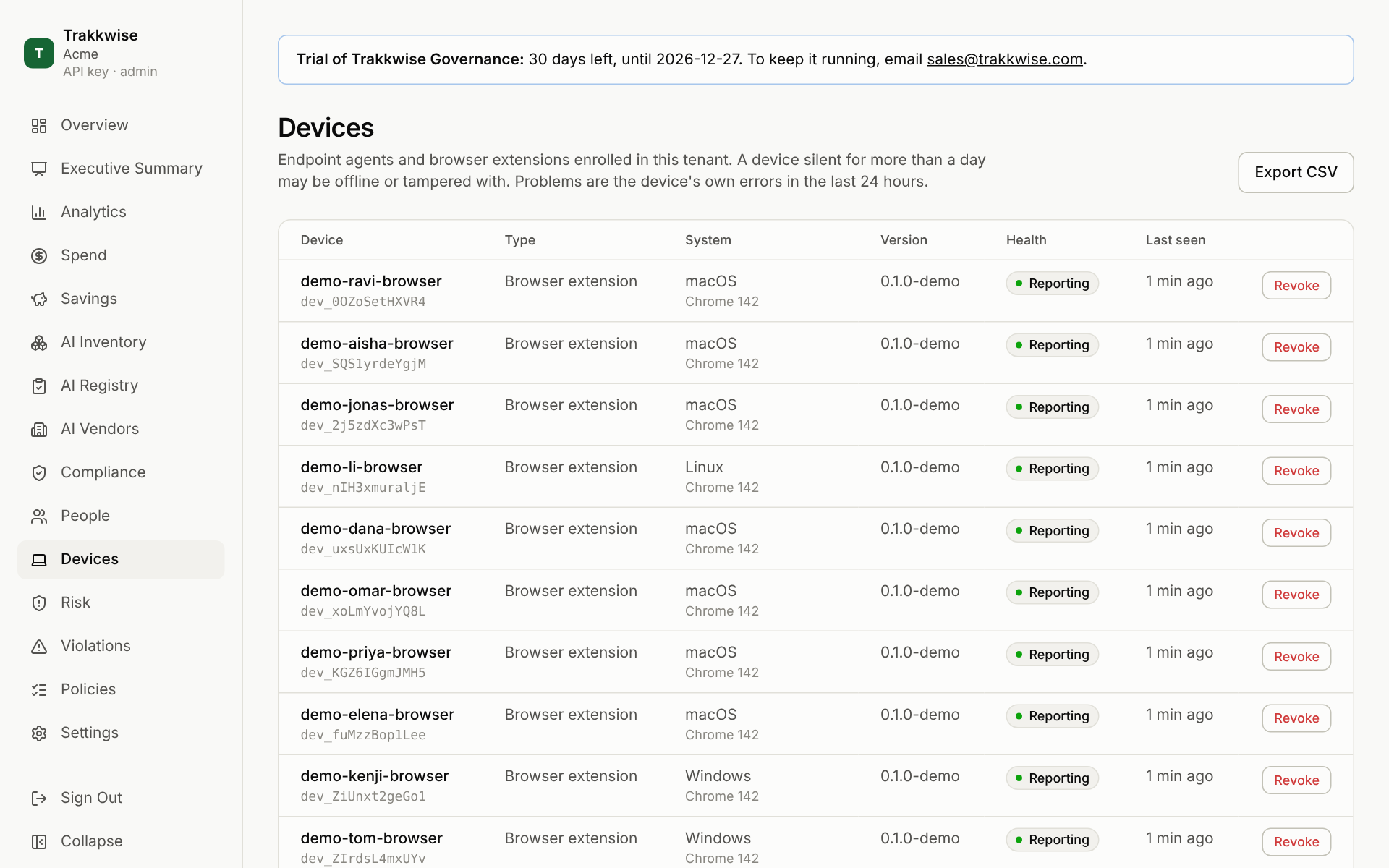
Every agent and browser extension enrolled in your organization: its name, type, system, version, health and when it was last seen.
| Health | Means |
|---|---|
| Reporting | Heard from in the last hour |
| Quiet N h | Not heard from for some hours: often just asleep or offline |
| Silent N d | Not heard from for a day or more: offline, or Trakkwise was removed or blocked |
| Never reported | Enrolled, but nothing received since |
| Revoked | Its key was revoked (below) |
Under the health, a device lists its own errors from the last 24 hours, such as Could not send events or Could not fetch policy, and how many batches it has queued if it's falling behind. What to check for each is in a device isn't reporting.
Admins can Revoke a device, for example a lost or replaced computer. Its key stops working at once. If its enrollment token is still valid, it can enroll again as a new device, so to stop a computer for good, uninstall Trakkwise through your MDM.
Screenshot The Devices page
Violations
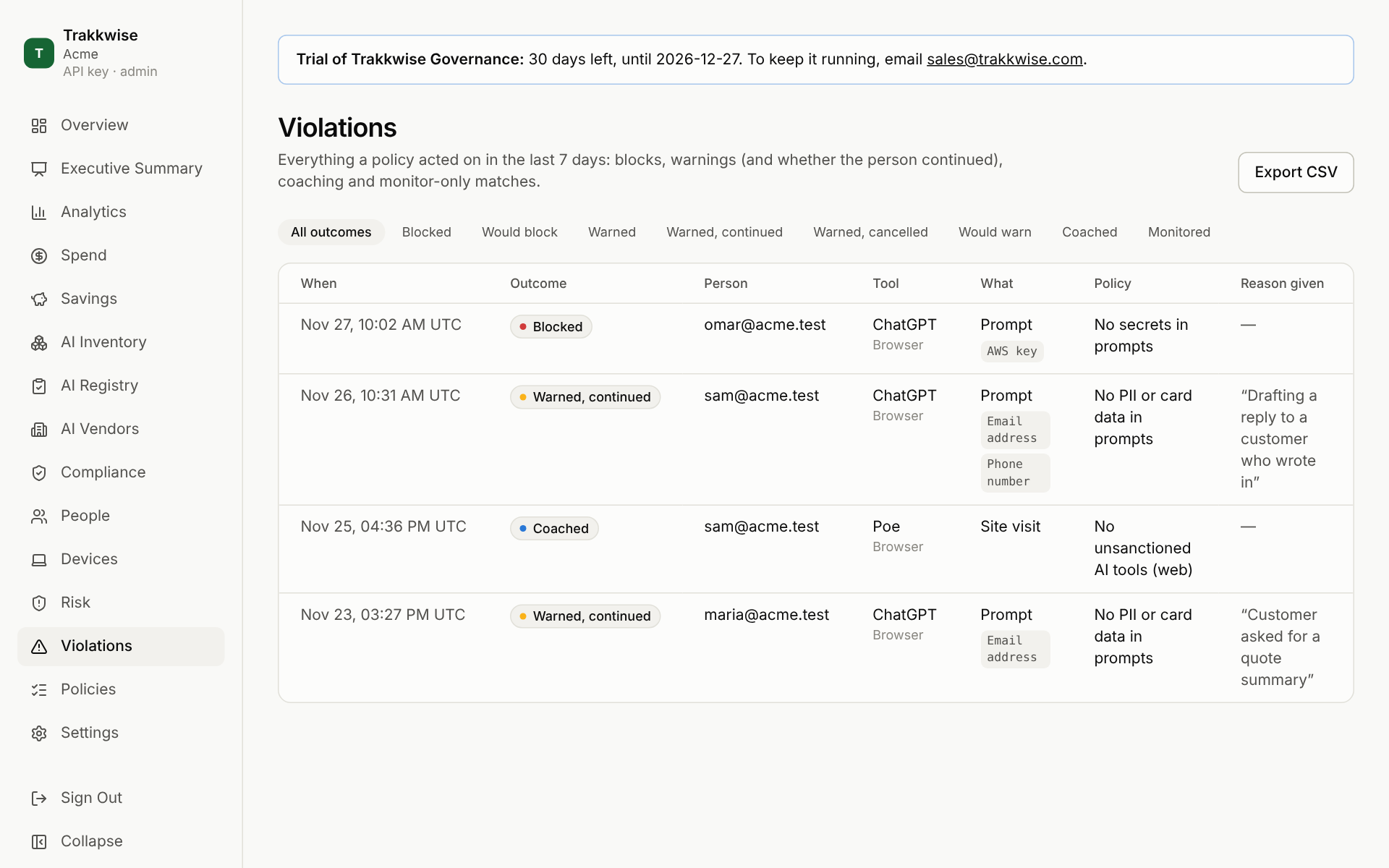
Everything a policy acted on in the last 7 days. Filter by outcome at the top:
| Outcome | Means |
|---|---|
| Blocked | The prompt, upload or site was stopped |
| Would block | A rule in test mode would have blocked it (nothing was stopped) |
| Warned, continued | The person saw a warning and went ahead, giving a reason |
| Warned, cancelled | The person saw a warning and stopped |
| Would warn | A rule in test mode would have warned |
| Coached | A tip was shown |
| Monitored | Recorded only |
Each row shows when, the person, the tool, what it was (a prompt, an upload, a site visit) with the kinds of sensitive data found, the policy, and the reason the person gave when they continued past a warning. Select a person or policy to see only theirs. The text of prompts isn't shown here.
Screenshot The Violations page
Policies
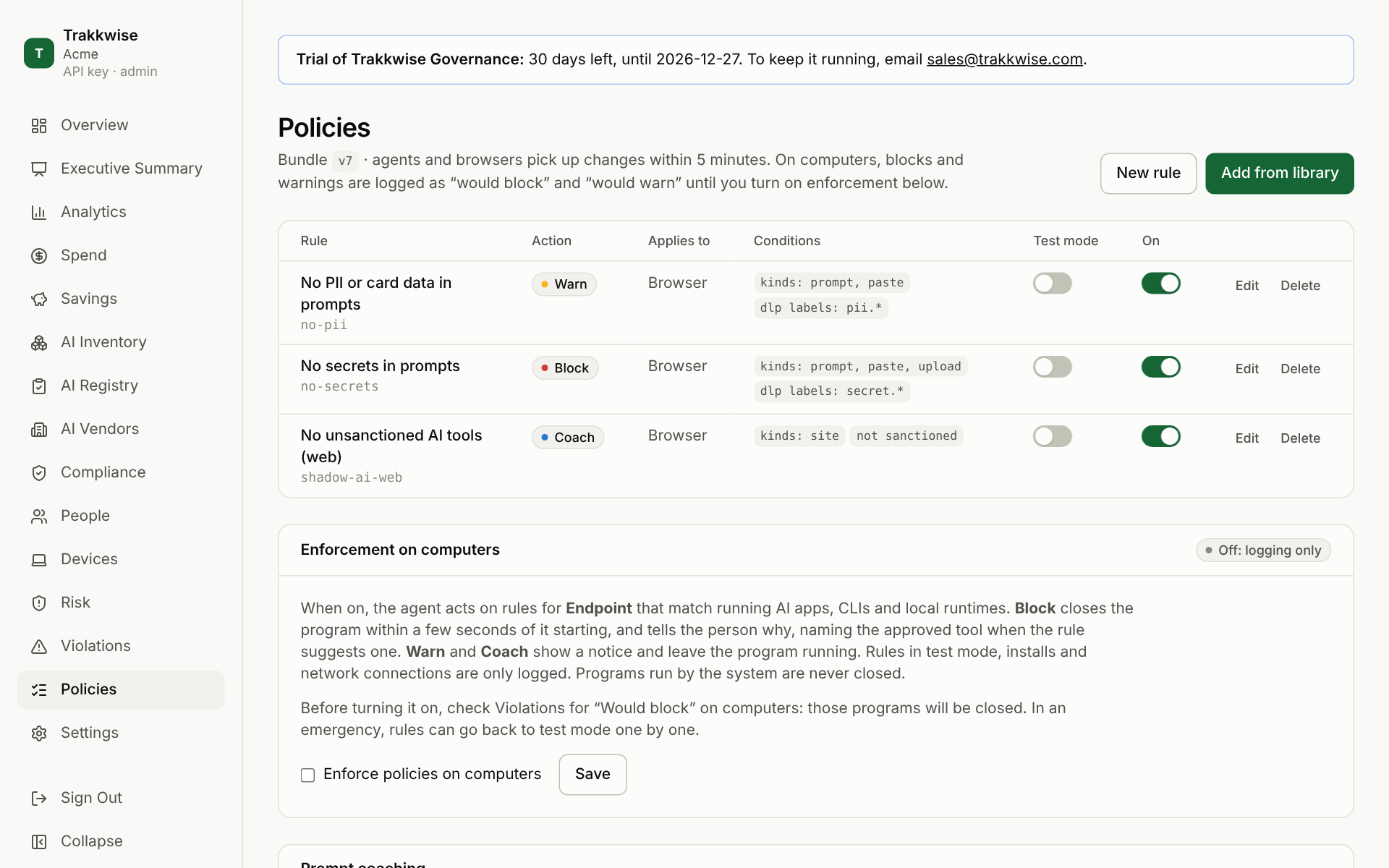
Your organization's rules: what each matches, its action (allow, coach, warn or block), whether it's in test mode and whether it's on. Admins add rules with New rule or Add from library, and change them with Edit. Below the rules:
- Enforcement on computers: off by default, so the agent only logs what it would block or warn ("would block", "would warn"). Turned on, the agent closes blocked AI apps, CLIs and local runtimes and tells the person why.
- Prompt coaching: tips the browser extension shows to help people prompt better, and how often.
- Sanctioned tools and MCP allowlist: the tools and MCP servers every client treats as approved.
Every rule, action and kind of sensitive data is in the policy reference.
Screenshot The Policies page
Risk
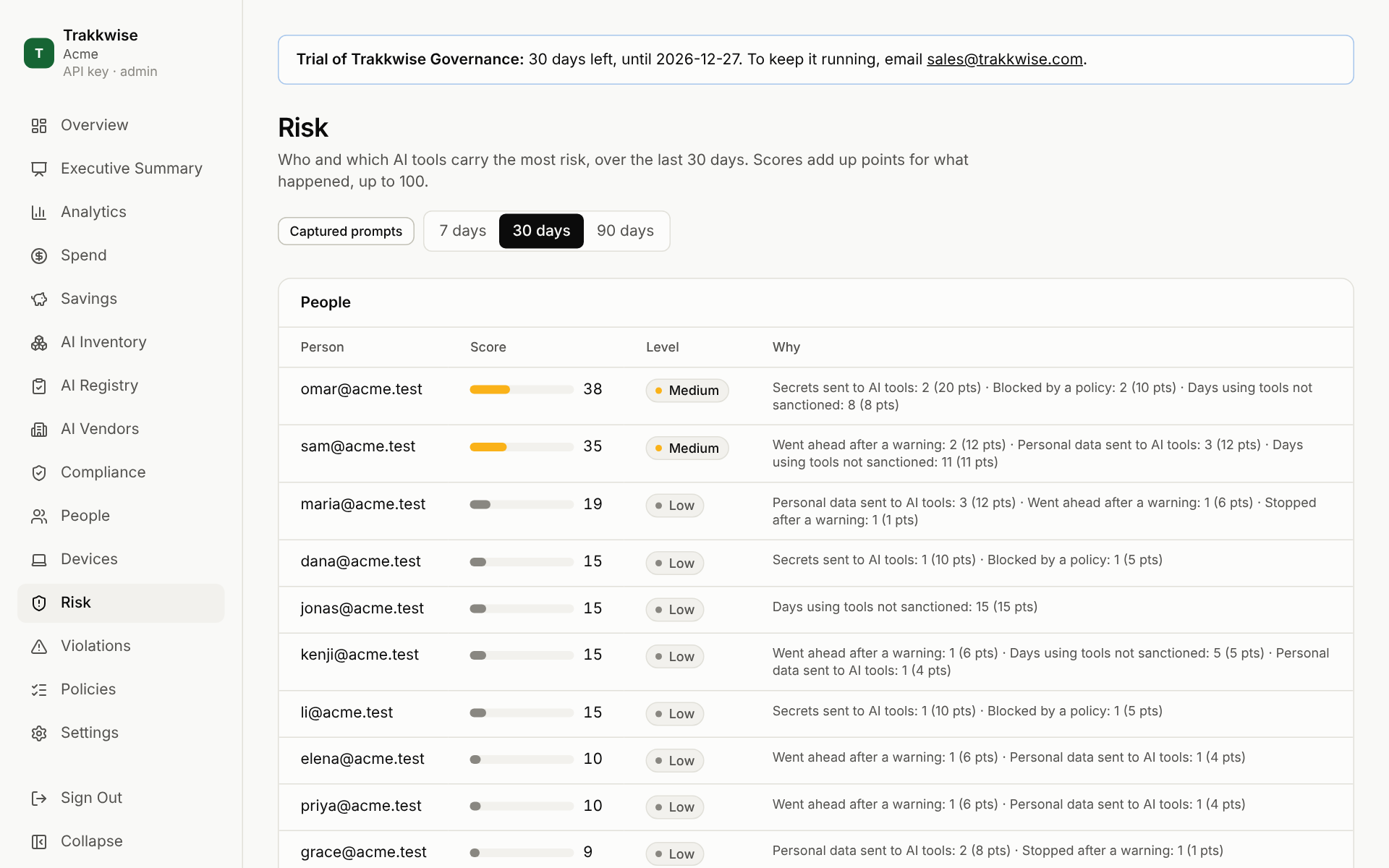
Who and which AI tools carry the most risk, over 7, 30 or 90 days. Each score adds up points for what happened (blocks, warnings people went past, sensitive data, unsanctioned tools), up to 100, with the reasons listed. High is 50 or more, medium 20 or more. Only what was detected counts, never what anyone typed. How scores are worked out at the bottom of the page lists the points. More in governance.
Screenshot The Risk page
Exports
Export CSV on AI Inventory, People, Devices and Violations (and on the spend pages) downloads the list as a spreadsheet, with the filters you chose. Names are hidden in exports too when they're hidden for your role (see members and roles).