Connecting AI vendors
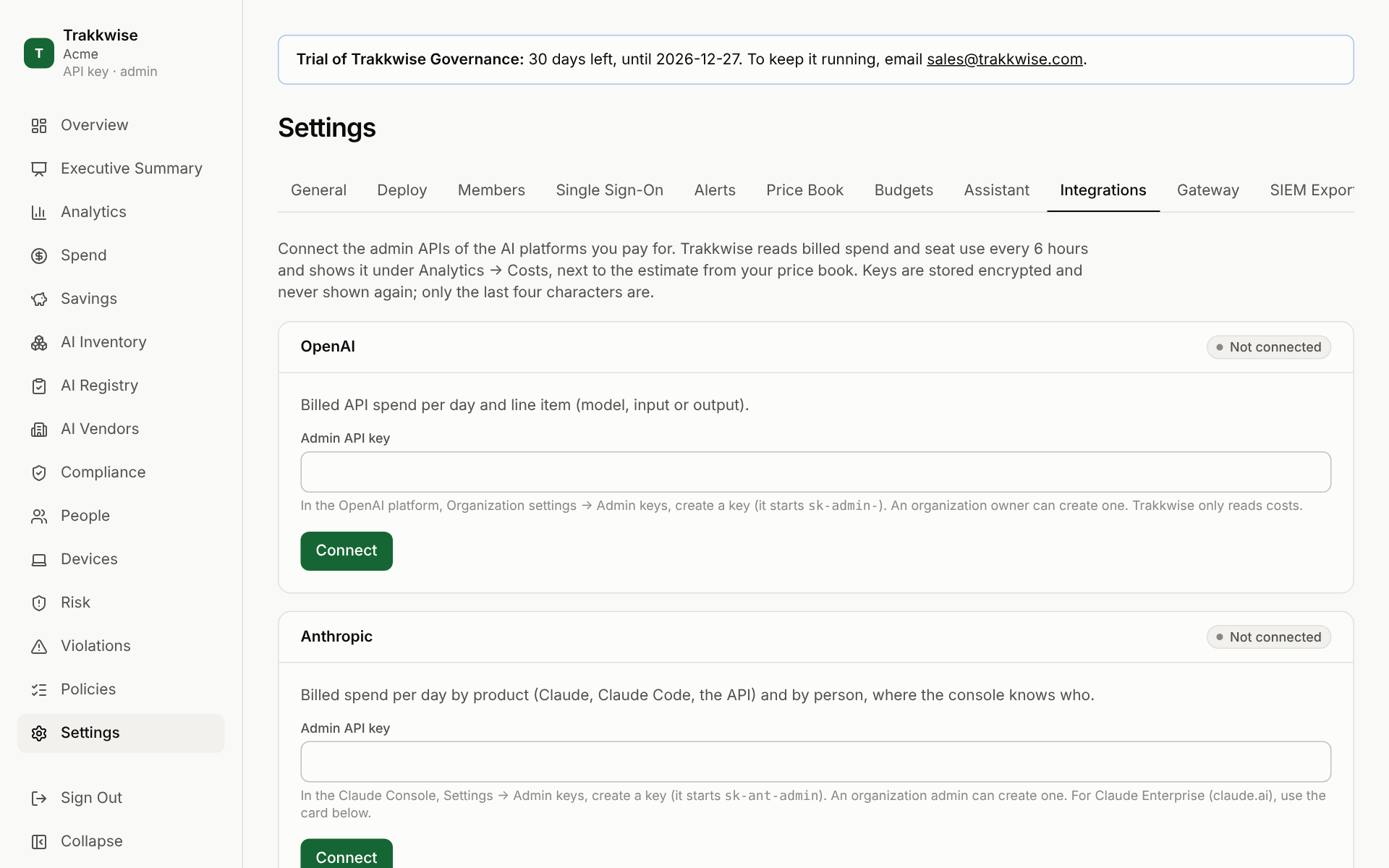
Connect the admin APIs of the AI tools your organization pays for, so Trakkwise can show what you were actually billed, who holds a paid seat, and when each person last used it. Devices show who uses which AI tool; the vendors' own admin APIs add the bills and the seats. Admins connect vendors under Settings → Integrations. Trakkwise only reads: it never changes anything at the vendor, and it never reads prompts, conversations, code or documents.
Screenshot Settings → Integrations, with a card for each AI vendor
What connecting gives you
| Vendor | Spend | Seats and last activity | Usage |
|---|---|---|---|
| OpenAI | Billed API spend per day and line item | — | Requests and tokens per model and person |
| Anthropic | Billed spend per day, product and person | — | Requests and tokens per model and person (Claude API) |
| Claude Enterprise | Billed spend per product and person | Seats assigned, who was active | — |
| ChatGPT Enterprise | Spend per client, plus OpenAI's estimate for credits | Who used ChatGPT and Codex | — |
| GitHub Copilot | Premium requests and AI credits beyond the plan | Seats bought and assigned, last activity | Premium requests and AI credits per model |
| Microsoft 365 Copilot | — (Microsoft reports credits, not dollars) | Licenses bought and assigned, last activity | Copilot Credits and sessions per person |
| Cursor | Charges beyond the plan per person and model | Team members, last activity | Requests, tokens and accepted lines |
| Replit | Replit's cost per person and day | Account members, last activity | — |
| Google Gemini | — (part of your Workspace plan) | Who used Gemini and NotebookLM | Actions per person per day |
| Gemini API and Vertex AI | Billed spend per day, SKU and project | — | — |
| xAI | The team's API spend per day and model | — | Requests and tokens per model |
What the integrations read shows up in:
- Spend: billed amounts next to the estimate from your price book, per tool and person.
- Analytics → Costs: the same spend over time.
- Savings: seats nobody used, seats bought but not assigned, and premium models used mostly for short API requests.
- AI Registry → Agents inside AI platforms: agents built in Microsoft 365 Copilot (with the optional permission below).
How it works
- Open Settings → Integrations (admins only) and find the vendor's card.
- Fill in the card's fields, paste the key, and select Connect.
- Trakkwise checks the key straight away by reading from the vendor. You see either "Saved. Read 12 assigned seats." or "Saved. Read 40 cost lines for the last 30 days.", or the reason it failed (see Troubleshooting).
- After that, Trakkwise reads the last 30 days and today every 6 hours, and replaces what it held for those days. Sync Now reads them at once.
Keys are encrypted when they are stored and are never shown again: the card shows only their last four characters (for a Google service account, its email address). To change a key, paste the new one and select Save and sync; leave the field empty to keep the stored one.
Each card shows its status: Not connected, Connected, Paused or Sync failing, with when it last synced, how many seats were bought (where the vendor says), and who connected it.
If every card says "Integrations are not available yet: the API has no SSO_SECRET_KEY", ask whoever runs your Trakkwise to set it. It encrypts the keys.
OpenAI
For the OpenAI API platform (platform.openai.com). For ChatGPT, use ChatGPT Enterprise.
You need: an Admin API key. It starts sk-admin-. An organization owner
can create one.
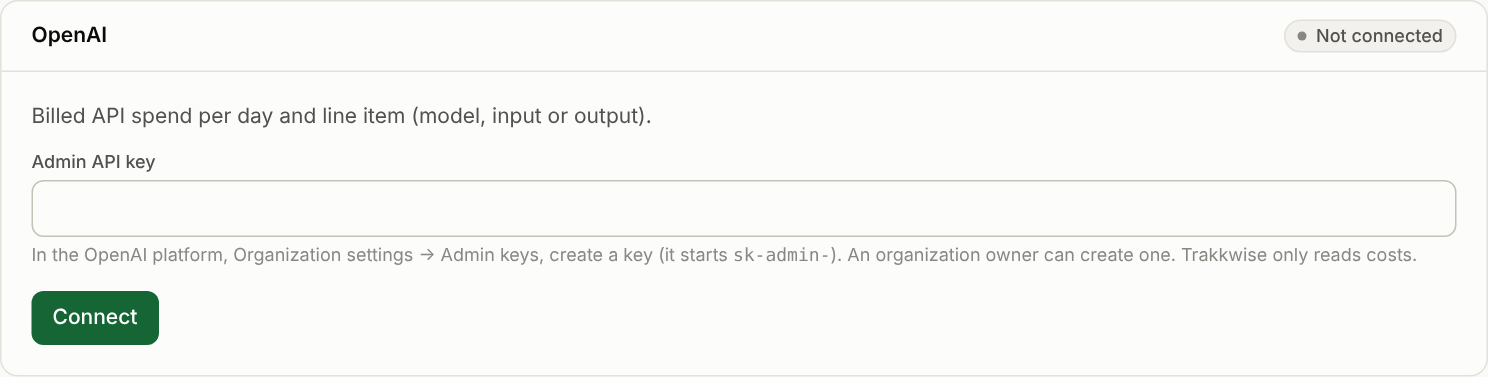
- In the OpenAI platform, open Organization settings → Admin keys and create a key.
- In Trakkwise, on the OpenAI card, paste it in Admin API key and select Connect.
Trakkwise reads: billed spend per day and line item (the Costs API), and requests and tokens per day, model and person (the Usage API). People are named from the organization's user list; usage by service accounts or keys not tied to a person has no name. If the key can't read usage, costs still sync.
Screenshot The OpenAI card in Settings → Integrations
Anthropic
For a Claude Console organization: the Claude API, Claude Code and Claude Team billed through the Console. For Claude Enterprise on claude.ai, use Claude Enterprise.
You need: an Admin API key. It starts sk-ant-admin. An organization admin
can create one.
- In the Claude Console, open Settings → Admin keys and create a key.
- In Trakkwise, on the Anthropic card, paste it in Admin API key and select Connect.
Trakkwise reads: billed spend per day, product (Claude, Claude Code, the API) and person where the Console knows who, from the Usage and Cost Analytics API; and, for the Claude API only, requests and tokens per model and person. Claude Code's tokens come from its own telemetry instead (see Claude Code and Codex), so they aren't counted twice. Anthropic's analytics start on 1 January 2026; earlier days aren't read.
Claude Enterprise
For Claude Enterprise on claude.ai.
You need: an Analytics API key with the read:analytics scope. Only the
organization's primary owner can create one.
- In claude.ai, open Organization settings → API, turn on API access and
create an Analytics API key with the scope
read:analytics. - In Trakkwise, on the Claude Enterprise card, paste it in Analytics API key and select Connect.
Trakkwise reads: the number of seats assigned, who used Claude (chat or Claude Code) in the last 30 days, and billed spend by product and person. Activity counts only, never conversations. Claude's analytics lag by a day, so "last activity" is at most yesterday.
ChatGPT Enterprise
You need: a workspace-scoped Admin API key with the
enterprise.analytics.usage.read scope, and the workspace ID. Both are in the
ChatGPT Enterprise admin console.
- In the ChatGPT Enterprise admin console, create an Admin API key for the
workspace with the scope
enterprise.analytics.usage.read, and copy the workspace ID. - In Trakkwise, on the ChatGPT Enterprise card, enter the Workspace ID, paste the key in Admin API key, and select Connect.
Trakkwise reads: one row per person and day from the Daily Usage Analytics API: who used ChatGPT and Codex in the last 30 days, and spend by client (ChatGPT, Codex CLI, the Codex IDE extension). Spend in US dollars is billed; OpenAI's estimate for credit-priced usage shows as "credits (estimated)". Counts and amounts only, never conversations.
This API doesn't report seat counts, so "assigned" shows the people with usage in the period.
GitHub Copilot
You need: a GitHub token that belongs to an organization owner or billing manager, and the organization's name. Either:
- a fine-grained token with the organization permission GitHub Copilot Business (read), or
- a classic token with the
manage_billing:copilotscope.
- In GitHub, create the token under your account's Settings → Developer settings → Personal access tokens.
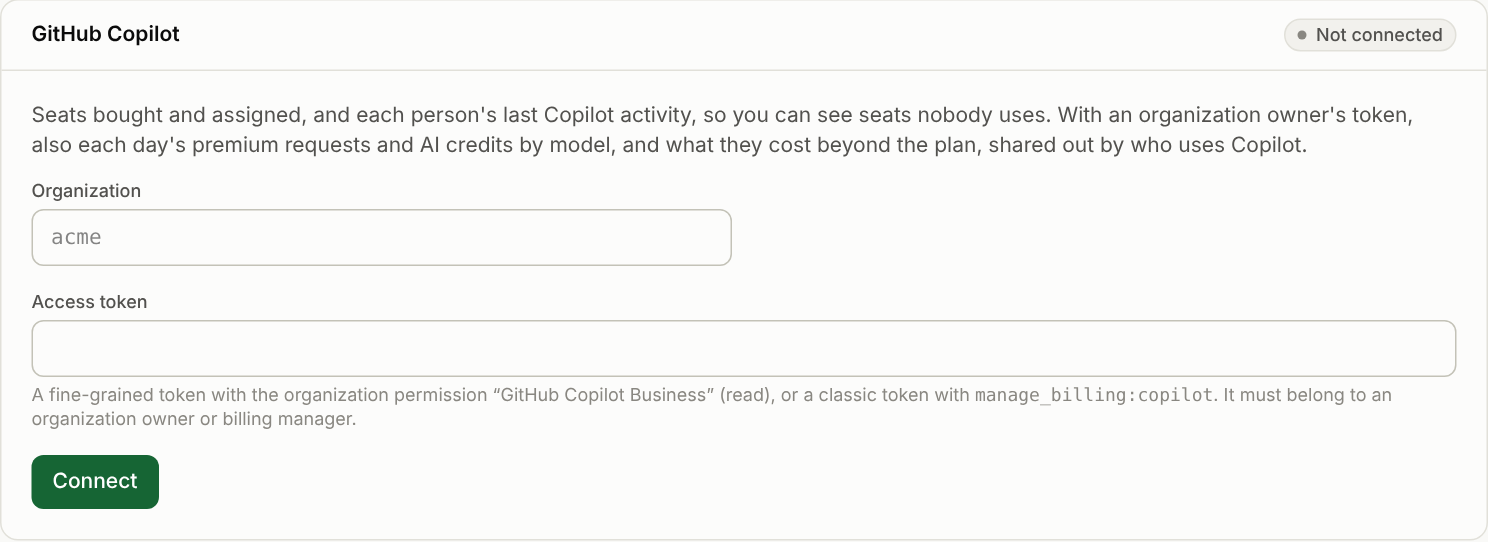
- In Trakkwise, on the GitHub Copilot card, enter the Organization
(as in
github.com/acme, justacme), paste the token in Access token, and select Connect.
Trakkwise reads: seats bought and assigned, and each person's last Copilot activity, so you can see seats nobody uses. People are named by their GitHub login.
If the token's owner is an organization owner, Trakkwise also reads each day's premium requests and AI credits by product and model, and what they cost beyond the allowance in your plan. These are the organization's totals: Trakkwise shares them out by who uses Copilot. Without owner rights, seats still sync and this part is skipped.
Screenshot The GitHub Copilot card in Settings → Integrations
Microsoft 365 Copilot
You need: an app registered in Microsoft Entra ID with a client secret, and admin consent for its application permissions.
In the Microsoft Entra admin center, register an app (App registrations → New registration).
Under API permissions, add these Microsoft Graph application permissions and select Grant admin consent:
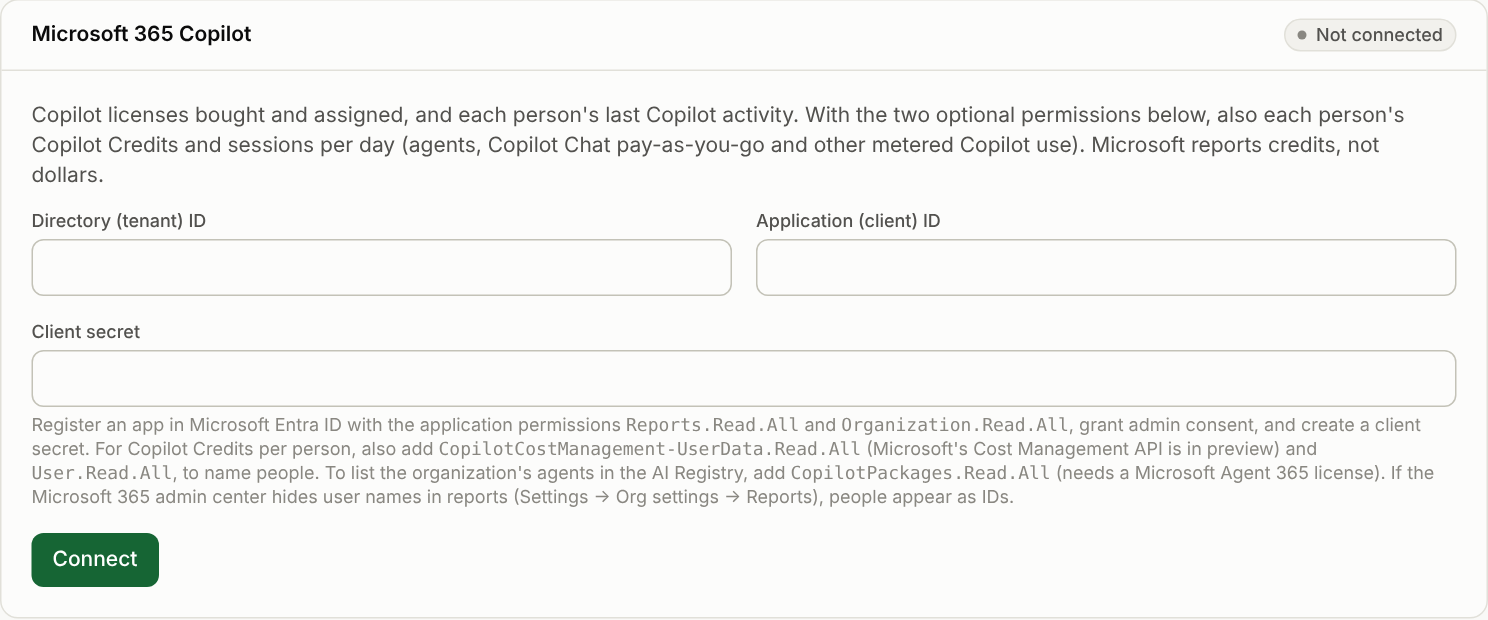
Permission For Needed Reports.Read.AllEach person's last Copilot activity Yes Organization.Read.AllCopilot licenses bought Yes CopilotCostManagement-UserData.Read.AllCopilot Credits and sessions per person per day Optional User.Read.AllNaming people in the Copilot Credits data Optional, with the one above CopilotPackages.Read.AllThe organization's agents, in the AI Registry Optional; needs a Microsoft Agent 365 license Under Certificates & secrets, create a client secret and copy its value.
In Trakkwise, on the Microsoft 365 Copilot card, enter the Directory (tenant) ID and Application (client) ID (both on the app's Overview page), paste the secret in Client secret, and select Connect.
Trakkwise reads:
- Copilot licenses bought and assigned, and each licensed person's last Copilot activity (the Microsoft 365 Copilot usage report).
- With the optional permissions: each person's Copilot Credits and sessions for each completed day (agents, Copilot Chat pay-as-you-go and other metered Copilot use). Microsoft reports credits, not dollars, and this API is in preview at Microsoft. Without these permissions, seats still sync.
- With
CopilotPackages.Read.All: the agents built in Copilot Studio or Agent Builder, or from a publisher, with where they're available and whether they're blocked. They appear under AI Registry → Agents inside AI platforms.
If the Microsoft 365 admin center hides user names in reports
(Settings → Org settings → Reports), people appear as IDs in Trakkwise too.
Without User.Read.All, people in the Copilot Credits data appear as
entra-user- followed by their Entra ID.
Screenshot The Microsoft 365 Copilot card in Settings → Integrations
Cursor
For Cursor Teams or Enterprise.
You need: a team Admin API key. It starts crsr_ and has the scope
admin:*. A team admin creates it.
- In the Cursor dashboard, open API Keys and create an Admin API key.
- In Trakkwise, on the Cursor card, paste it in Admin API key and select Connect.
Trakkwise reads:
- who is on the team and when each person last used Cursor;
- Agent, chat, Composer, Cmd+K and Bugbot requests and AI lines accepted, per person per day;
- tokens per model, and what Cursor charged beyond the plan per person, day and model.
Counts and amounts only, never prompts or code. Usage included in the plan is the seat itself: set Cursor's seat price in the price book so it counts in spend.
Replit
For Replit Enterprise. Replit's Admin API is in beta.
You need: an Account API key. It starts rpl_. An account admin creates
it; read-only is enough.
- In Replit, open Settings → Developer → API keys and create a read-only key.
- In Trakkwise, on the Replit card, paste it in Account API key and select Connect.
Trakkwise reads: everyone on the Account and when they were last active,
and Replit's cost per person per day for each metric (Agent, deployments,
storage and the rest), as on Replit's own Usage page. Costs are Replit's gross
amounts, before credits and discounts. Cost Replit can't attribute to a person
(mostly hosting) is kept for the day without a name; someone no longer on the
Account keeps their cost under replit-user- and their Replit user ID. Costs
only, never projects, prompts or conversations.
Google Gemini
Gemini in Gmail, Docs, Meet and the other Google Workspace apps, and NotebookLM.
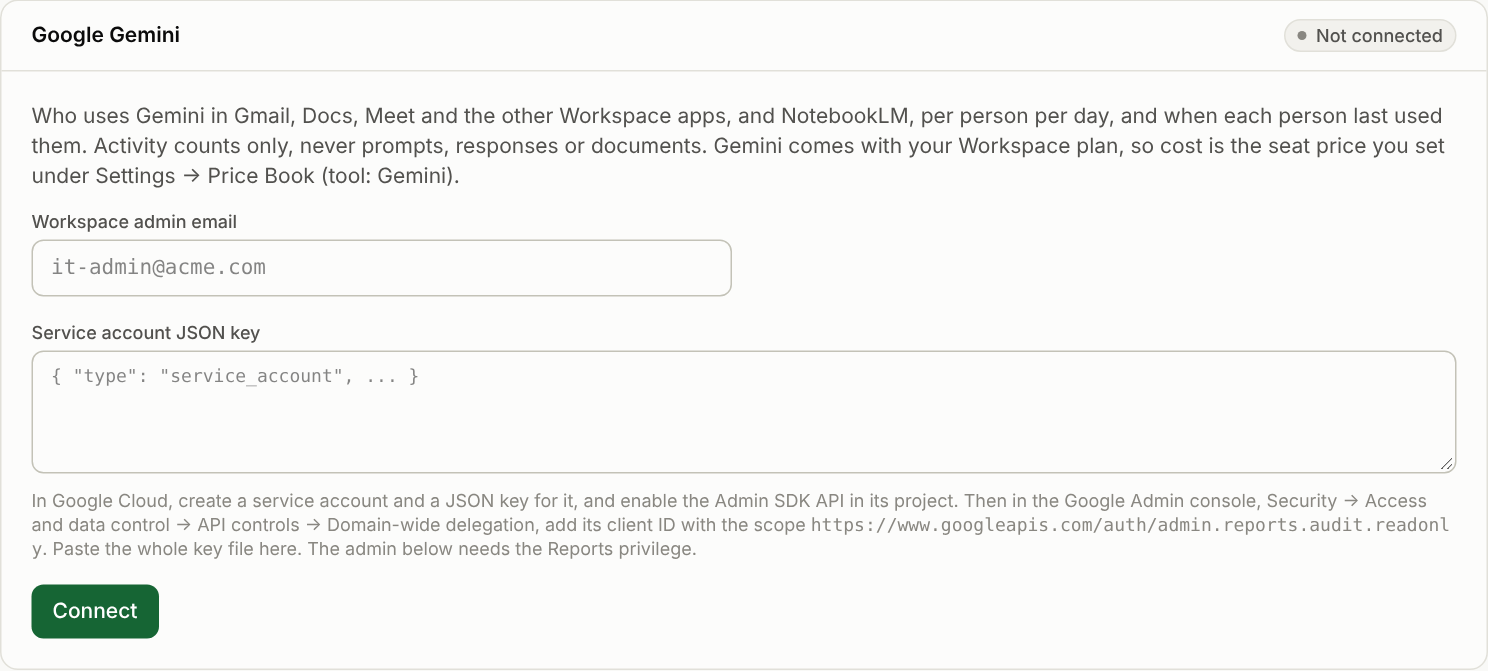
You need: a Google Cloud service account with a JSON key, domain-wide delegation for one read-only scope, and a Workspace admin with the Reports privilege for it to act as.
- In Google Cloud, create a service account (or pick a project for it), enable the Admin SDK API in that project, and create a JSON key for the service account.
- In the Google Admin console, open
Security → Access and data control → API controls → Domain-wide
delegation, add the service account's client ID, and give it the scope
https://www.googleapis.com/auth/admin.reports.audit.readonly. - In Trakkwise, on the Google Gemini card, enter the Workspace admin email (an admin with the Reports privilege), paste the whole JSON key file in Service account JSON key, and select Connect.
Trakkwise reads: from the Admin SDK Reports API, Gemini actions in the Workspace apps and in NotebookLM, per person per day, and when each person last used them. Each person active in the period counts as a seat. Activity counts only, never prompts, responses or documents.
Gemini is billed inside your Workspace plan, not separately, so its cost is the seat price you set in the price book (tool: Gemini).
Screenshot The Google Gemini card in Settings → Integrations
Gemini API and Vertex AI
What your Google Cloud billing account paid for the Gemini API and Vertex AI.
You need: Cloud Billing export to BigQuery (the standard usage cost export), and a service account that can query it. No domain-wide delegation is needed.
- If it isn't on already, turn on Cloud Billing export to BigQuery, standard usage cost, in the Google Cloud console's Billing → Billing export. A new export starts with the day it's turned on: earlier days aren't in it.
- Create a service account and a JSON key. Give it BigQuery Job User on the export's project and BigQuery Data Viewer on the export's dataset.
- In Trakkwise, on the Gemini API and Vertex AI card, enter the
Billing export table as
project.dataset.gcp_billing_export_v1_…(the full table name), paste the whole JSON key file, and select Connect.
Trakkwise reads: cost after credits, in US dollars, per day, service, SKU and Google Cloud project, for the services named Vertex AI, Gemini or the Generative Language API. Google's billing export doesn't name people, so spend is per project. Amounts only, never prompts or responses.
xAI
For the xAI API. Grok apps (grok.com and the mobile app) aren't in this API.
You need: a team management key from the xAI Console, with access to the team's billing. Management keys are separate from API keys.
- In the xAI Console, open Settings → Management Keys, create a key for the team, and give it access to billing.
- In Trakkwise, on the xAI card, paste it in Management key and select Connect. Trakkwise finds the team from the key.
Trakkwise reads: the team's API spend per day and model, with tokens and requests per model. xAI doesn't say who made each request, so spend is shared out by people's usage where Trakkwise can, or shown as the team's. Amounts and counts only, never prompts or completions.
Pausing and disconnecting
- Pause stops the syncs and keeps the key and everything already read. Resume starts them again.
- Disconnect deletes the key and the spend, seat and usage data read from that vendor. Spend for those days is worked out again without it.
Both are recorded in the audit log (Settings → Audit Log). To revoke access at the vendor too, delete the key there.
Tools without an admin API
Some AI tools have no admin API, or no API Trakkwise reads yet. Two ways to count them:
- A seat price. In the price book, set what you pay per seat or per token for the tool. Trakkwise estimates spend from the people devices see using it.
- Your own numbers. An internal app that calls a model API with its own key, or a cost your finance team tracks elsewhere, can post each day's totals with the usage webhook. They count in spend and usage like any vendor's.
Troubleshooting
When the first check or a sync fails, the card shows Sync failing and the reason, as "Last sync 2 hours ago: …". The most common:
| Message | What to do |
|---|---|
| "… the key was refused (401)" or "(403). Check it is an admin key with the permissions listed." | The key is wrong, revoked, or not an admin key. Create a new one as described for the vendor, with the permissions listed. |
| "Cursor …: the key was refused (…). It must be a team Admin API key (crsr_…) with the admin:* scope, made by a team admin." | Create the key in the Cursor dashboard as a team admin. |
| "Replit …: the key was refused (…). It must be an Account API key (rpl_…) made by an account admin on Replit Enterprise." | Create the key as an account admin. Replit's Admin API is for Replit Enterprise only. |
| "xAI management key: the key was refused (401). It must be a management key from the xAI Console (Settings → Management Keys), not an API key." | Use a management key, not an API key. |
| "xAI usage: the management key isn't allowed to read billing usage (403). Give it access to the team's billing in the xAI Console." | Give the key access to billing. |
| "That management key isn't for a team. Create one for the team whose API spend to track." | Create the management key for the team. |
| "Microsoft Graph refused the app (needs the Reports.Read.All application permission, with admin consent)." | Add Reports.Read.All as an application permission (not delegated) and grant admin consent. |
| "Enter the Entra tenant ID and the app's client ID (both GUIDs)." | Copy both from the app's Overview page in Entra. |
| "Microsoft's Copilot Credits usage source is unavailable just now; the next sync tries again." | Nothing: Microsoft's preview API was unavailable. The next sync tries again. |
| "Google refused the service account: give it domain-wide delegation in the Admin console (Security → Access and data control → API controls) for the scope …" | Add the service account's client ID under Domain-wide delegation with the scope shown. |
| "Google sign-in for the service account failed (…). Check the key, and that the admin email is a Workspace admin." | Paste a current key, and use the email of a Workspace admin. |
| "Google refused the Reports API (…). The admin needs the Reports privilege, and the service account the audit scope." | Give the admin the Reports privilege in the Admin console. |
| "Paste the service account's JSON key file, as Google Cloud downloads it." or "That isn't a service account JSON key …" | Paste the whole downloaded .json file, not the key ID or the private key alone. |
| "BigQuery refused the service account (403). …" | Give it BigQuery Job User on the project and BigQuery Data Viewer on the dataset. |
| "BigQuery couldn't find that table (404). …" or "The billing export table must be project.dataset.gcp_billing_export_v1_ |
Copy the full table name from BigQuery. |
| "That Workspace ID doesn't look right." (or GitHub organization, Entra tenant ID, and so on) | Check the field: Trakkwise checks its format before it calls the vendor. |
| "… the vendor answered 500" (or another number), or "Could not reach the vendor (timed out)" | The vendor had a problem. Trakkwise tries again at the next sync, or select Sync Now later. |
Spend appears for the days the vendor has reported: most vendors report a day after it ends, so today's figures fill in over the next day.